Storycraft (AI Content)
AI writing, graphics, photos, and video.
Articles
Generate and review a graphic
Generate a graphic, inspect its wording, branding and dimensions, and download a review copy.
Find and review generated media
Find generated media in Media History, review its prompt and settings, and open the original image.
Generate and download a photo
Generate a photo with Quick Photo, inspect the full-size result, and download a copy.
Generate and reuse written content
Generate copy in Writer, review and copy the result, then find it again through Content Hub and Writing History.
Trim mute and caption a video
Trim a clip, mute its original sound, add a timed caption, and export an MP4 from Video Studio.
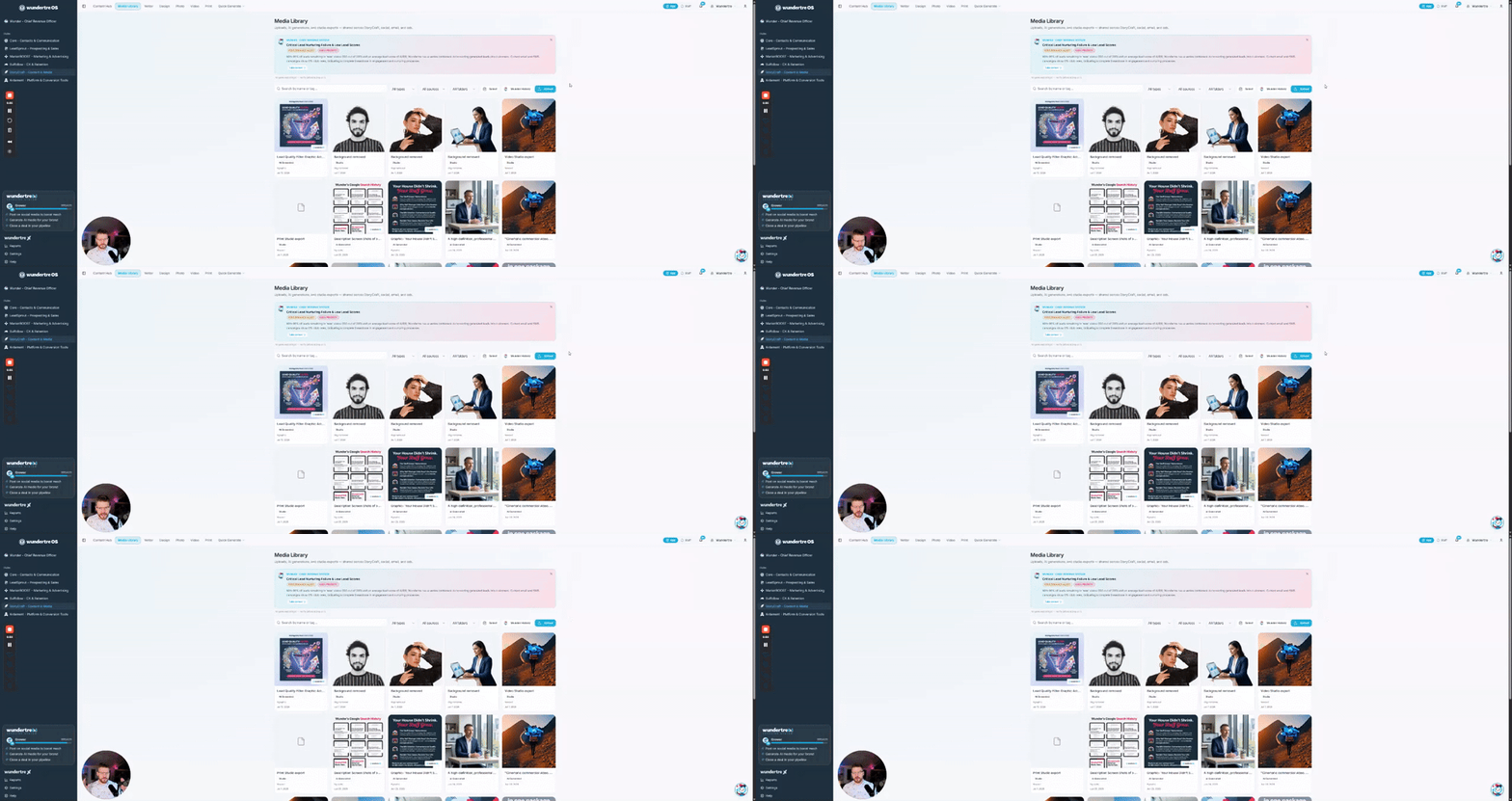
Upload and organize Media Library assets
Upload a file, give it a clear title, organize it with a folder and tags, and find it again with search and filters.
Edit a photo in StoryCraft Studio
Crop a photo, adjust its appearance, save the project and export a finished image to Media Library.
Create print layouts with the correct size and units
Set a Print Studio page size in inches, position artwork, save the layout and export a print PDF.
Save, restore and export a StoryCraft project
Save project versions, restore a snapshot, export an image, organize it in Media Library, and reopen your editable design.
Create and edit a design in StoryCraft Studio
Start with a template, edit text and background colors, and save an editable announcement design.
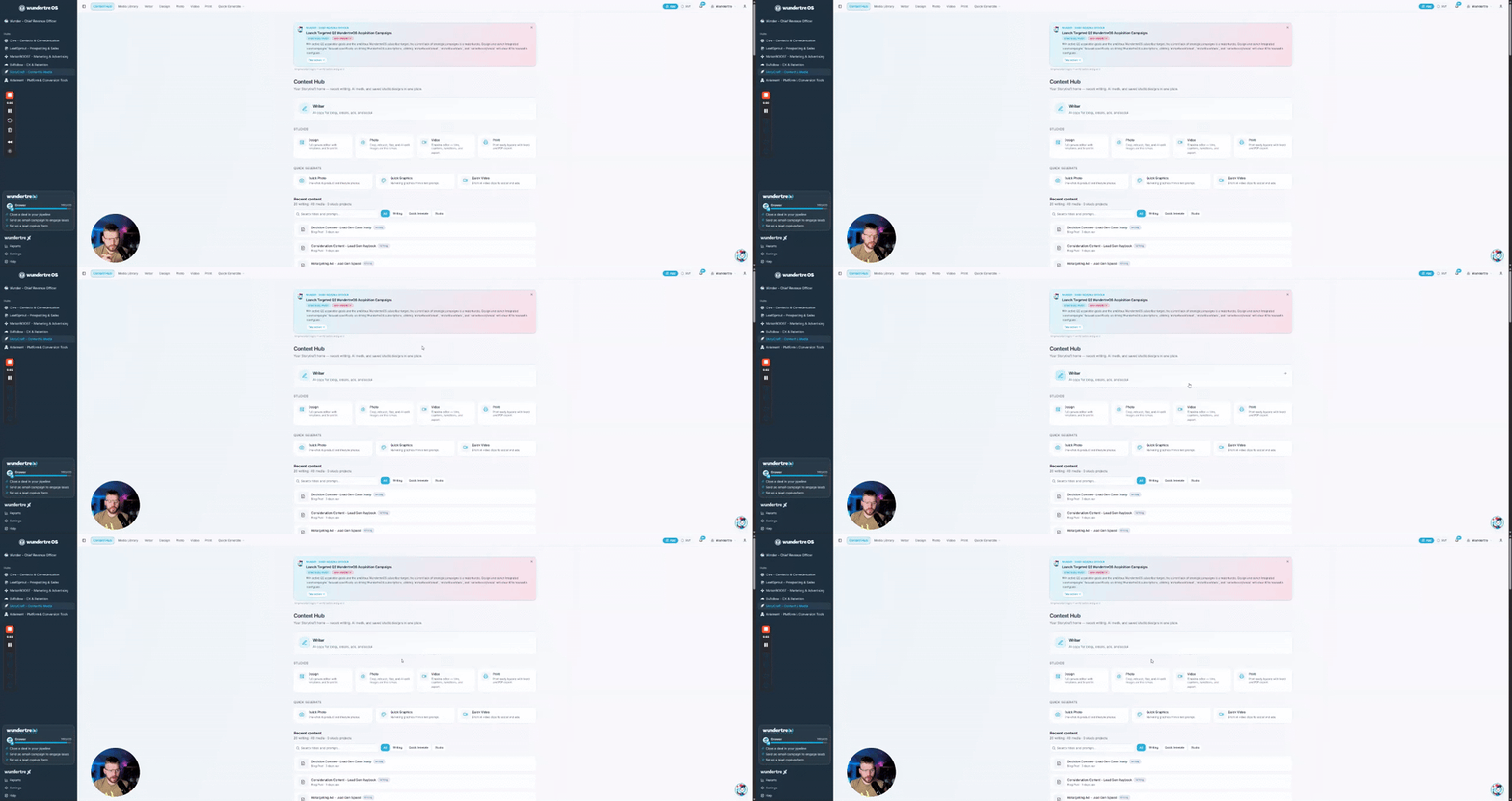
Find the right StoryCraft tool
Choose a writing, studio, or quick-generation tool in Content Hub, and find your recent content and saved assets.
Find and open an existing Media Library asset
Search and filter Media Library, then open a saved written asset in Writing History for review or reuse.