
Upload a file from your computer, give it a clear title, and organize it with a folder and tags. This walkthrough uploads a 10-second MP4, then uses search and filters to find it again in Media Library.
Before you begin
Sign in to WundertreOS and check that the organization selector shows the organization where you want to work. Have the file you want to upload ready on your computer.
1 Open Media Library
Select StoryCraft - Content & Media in the left navigation, then open Media Library.
2 Upload your file
-
Select Upload above the media cards.
-
In the file chooser, find and select your file. This example uses garden_cottage_original_10s.mp4.
-
Confirm your selection in the file chooser and wait for the upload to finish.
Confirm that the new media card appears. In this example, the success message reads File uploaded to General, and the card shows Upload as its source and General as its folder.
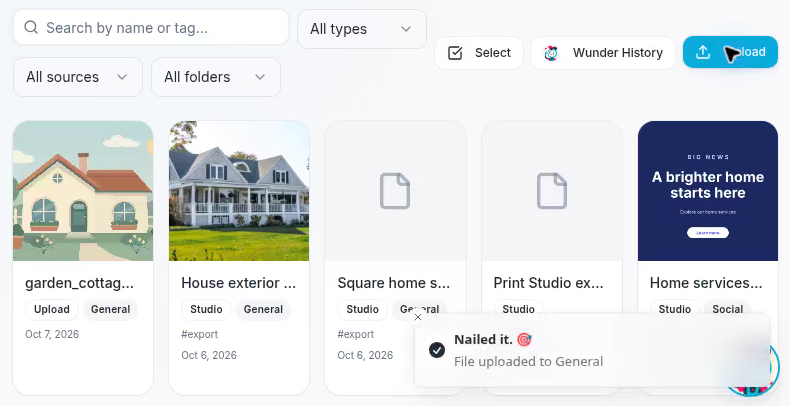
The upload confirmation and new card show that the file reached Media Library.
3 Find and rename the upload
Use Search by name or tag... to locate your file. Enter garden to find the upload in this example.
Hover over the media card and select its pencil icon. The Edit media dialog opens with Title, Folder, and Tags fields.
Replace the Title with a descriptive name. This example uses Garden cottage walkthrough.
4 Choose a folder and add tags
In the same Edit media dialog, select the Folder dropdown and choose Social. Under Tags (comma-separated), enter home, garden, video.
Use a folder that suits the asset and short tags that you will recognize when searching later. Separate each tag with a comma.
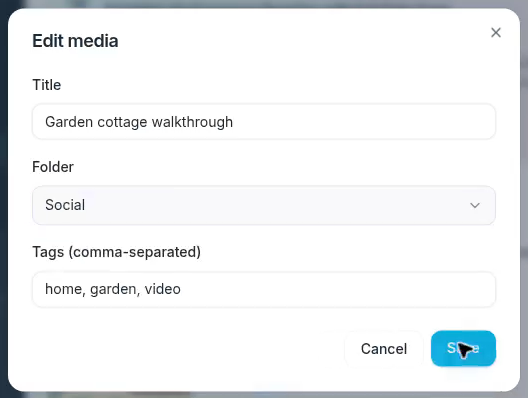
Give the upload a useful title, choose Social, and enter comma-separated tags.
Select Save and wait for the Updated confirmation. Check that the card shows the new title, the Social folder label, and the tags #home, #garden, and #video. A long title may appear shortened on the card.
5 Narrow the results with filters
Use the filters above the cards to find uploaded videos in the folder you chose:
-
Open All types and select Videos.
-
Open All sources and select Upload.
-
Open All folders and select Social.
The type filter also offers Images, Audio, Documents, and Other. The source filter lets you narrow results by where the media came from. For this example, keep Videos, Upload, and Social selected.
6 Find the asset by its tag
Replace garden in the search field with video. The Garden cottage walkthrough card remains in the results because it has the video tag and matches the selected filters.
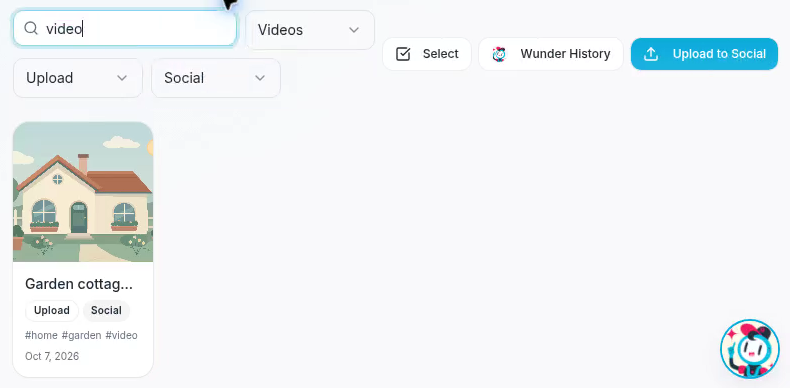
Search for a tag while filtering to Videos, Upload, and Social.
With Social selected in the folder filter, the upload button reads Upload to Social. Check this label before adding another file.
Expected result
Your video is uploaded to Media Library with the title Garden cottage walkthrough, the Social folder, and three searchable tags. You can find it again by its name or tag and narrow the results by type, source, and folder.