
Create an AI graphic for a social or marketing placement, review the full-size image, and download a copy. This example shows why checking the result is essential: generated wording, branding, and dimensions can differ from the request.
Before you begin
Sign in to WundertreOS and select the correct organization. Decide on your message and intended placement. This example requests a square home services announcement.
1 Open Quick Graphics
In StoryCraft, open Content Hub and select Quick Graphics under QUICK GENERATE. The Graphics page opens with the Graphics Studio form.
2 Choose the placement and write the prompt
In Platform Size, select Instagram Post (1080×1080) for this example. In Prompt, describe the message, colors, illustration, and layout. Use quotation marks around any exact wording.
Example prompt: Create a clean square announcement graphic for a home services business. Use a dark navy background, warm white text, and a simple house illustration. Main headline: “A brighter home starts here”. Supporting line: “Explore our home services”. Use a clear visual hierarchy, generous spacing, and no extra wording.
3 Check context and exclusions
Review Business Context. This example turns it Off. Open Advanced and enter watermarks, extra wording, cluttered layout, small unreadable text in Negative Prompt. These instructions still need to be checked against the generated result.
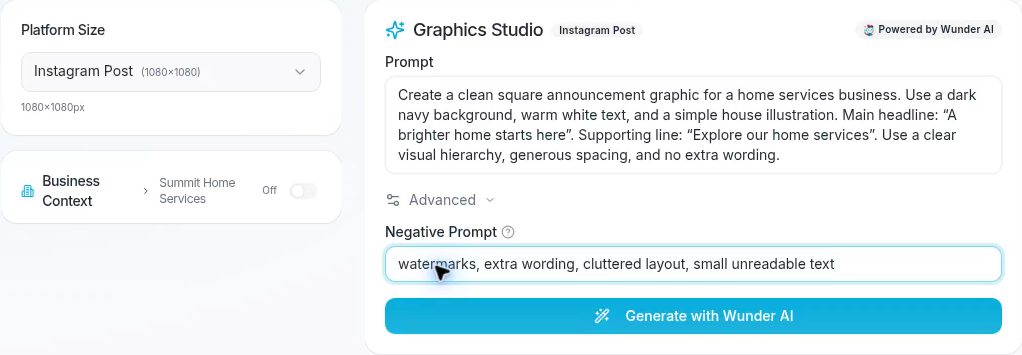
Review the placement, prompt, Business Context setting, and Negative Prompt before generating.
4 Generate the graphic
Select Generate with Wunder AI once and wait for the result. A completed image appears in Gallery below the form. Generation time can vary; allow the current request to finish before submitting another.
5 Open the image and review it
Move over the Gallery card and select Open full size. The image opens in a new browser tab. Read every word and compare the complete image with your prompt, rather than relying on the thumbnail.

The example result needs review: the headline repeats “home” and a logo appears at the bottom.
Text: The requested headline was “A brighter home starts here”. This result says “A brighter home home starts here”. Correct the repeated word before using the image.
Branding: The result includes a Summit Home Services logo even though Business Context was Off. Confirm that any logo, business name, or other added content is intended.
Layout: Check contrast, spacing, legibility, and the position of important content. Inspect the whole image, including the corners and small text.
6 Download a review copy
Return to the Graphics browser tab. Move over the Gallery card and select its Download icon. A Download started notification appears; check your browser downloads to confirm the file finished saving.
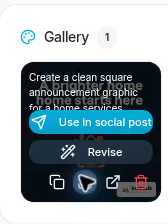
The Download control sits in the icon row beneath the card actions.
7 Check the actual file dimensions
Check the downloaded image’s properties or information panel before preparing it for the final placement. The PNG in this example is 1024 × 1024, although the form requested Instagram Post (1080×1080). Do not assume the selected preset guarantees the output dimensions.
Resolve text and branding issues and confirm the dimensions are suitable before publishing. This walkthrough ends with a downloaded review copy; the example graphic still needs correction.
Expected result
A generated graphic remains in Gallery, and you have downloaded a copy for review. You have checked the wording, branding, composition, and actual dimensions before deciding whether it can be used.