
Shorten a video, mute its original sound, and add a timed text caption in Video Studio. This walkthrough starts with the Garden cottage walkthrough clip from Media Library and saves an editable project before exporting an MP4.
Before you begin
Sign in to WundertreOS and check that the organization selector shows the organization where you want to work. Have a video in Media Library. This example uses the 10-second clip from Upload and organize Media Library assets.
1 Open Video Studio and add a clip
Select StoryCraft - Content & Media in the left navigation, then select Video. In Video Studio, open the Files tab and select Garden cottage walkthrough. The video appears as a layer on the canvas and a clip on the timeline.
The example starts with a 1920 × 1080 video and a 10-second clip. Use Play below the canvas to preview it.
2 Trim the end of the clip
Select the video clip in the timeline. Move to its right edge, then drag that edge to the left to shorten the clip. In this example, the clip ends at about 8.1 seconds.
Play the shortened clip and check that it ends where you want it to. Adjust the right edge again if needed.
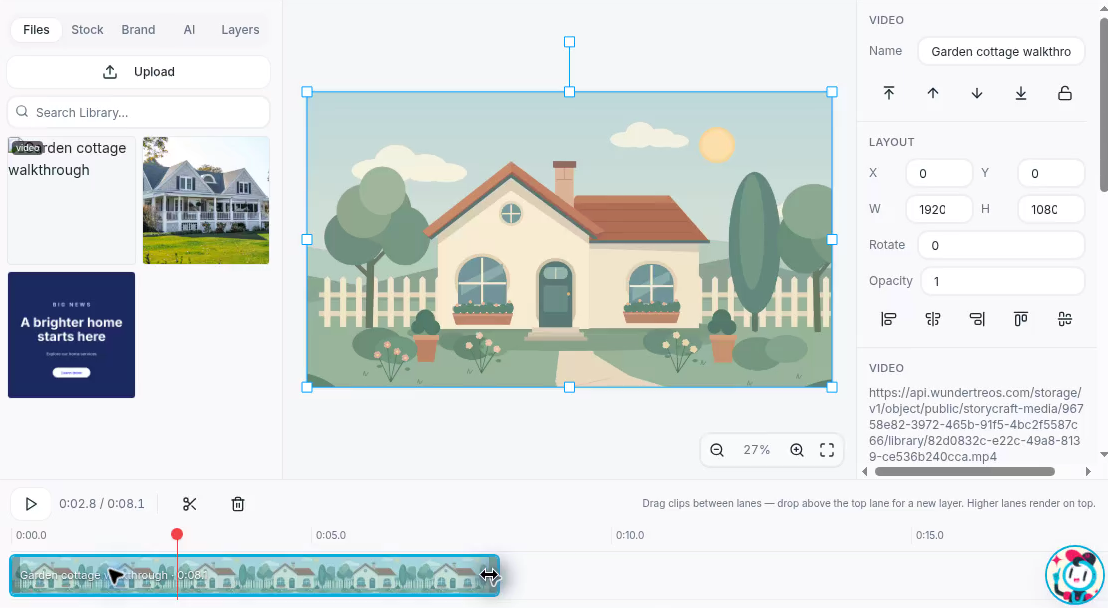
Drag the right edge of the timeline clip to shorten its duration.
3 Mute the original sound
Select the video layer so its properties appear on the right. Find the VIDEO controls and select Mute. The control changes to Muted, confirming that the video layer’s original audio is muted.
4 Add and edit a timed caption
-
Move the timeline playhead to the moment when the caption should appear. This example starts the caption at about 2.8 seconds.
-
Select Add caption at playhead in the toolbar. A Caption text layer is added for 3 seconds, from about 2.8 to 5.8 seconds in this example.
-
With Caption selected, replace Your caption here in the TEXT field with Welcome to the garden cottage.
-
Set the caption Style to Boxed and Size to 58. Keep the white, bold, centered text used in this example.
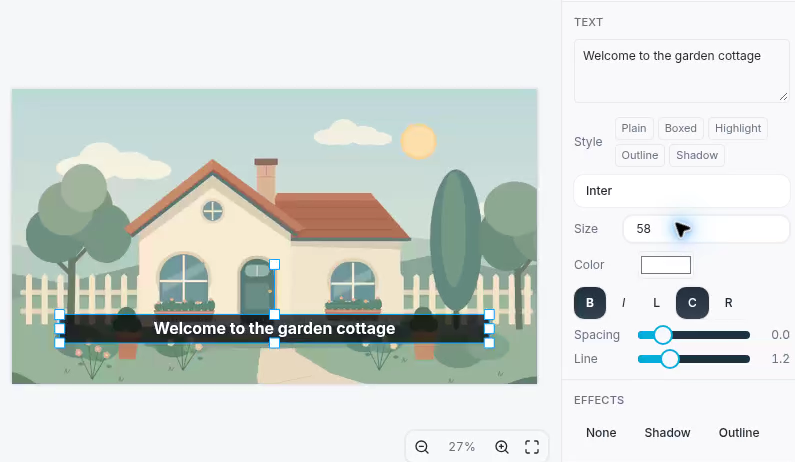
Edit the Caption layer and choose Boxed to place a background behind the text.
5 Preview and save the project
Play the video from the beginning. Check the trimmed ending, confirm that the original sound is muted, and make sure the caption appears at the intended time and stays readable.
If a paused preview looks dark after moving the playhead, select Play briefly, then Pause to display a video frame.
Select Save in the upper-right corner. Wait for the Saved confirmation and All changes saved before leaving the editor.
6 Export the video
Select Export… in the upper-right corner. For this example, choose MP4 · 1080p, smaller file.
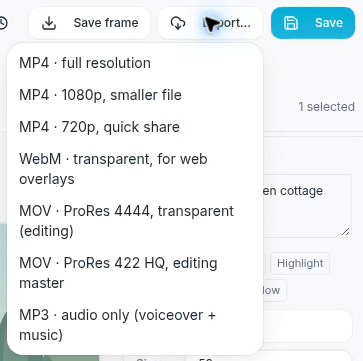
Choose MP4 at 1080p for this example.
The menu also offers a full-resolution MP4, a 720p MP4 for quick sharing, WebM and MOV formats, and MP3 for audio only. Choose the format that fits how you plan to use the result.
Wait for rendering to finish before leaving the export screen. Once it completes, open Media Library to find the exported video.
7 Name the exported video
In Media Library, find the new Video Studio export card. Hover over the card and select its pencil icon to open Edit media. Change Title to Garden cottage captioned clip, then select Save.
Confirm the new title on the card. This example keeps the General folder and the export tag. You can use Search by name or tag... to find the video later.
Expected result
You have a saved video project with a clip trimmed to about 8.1 seconds, its original audio muted, and a boxed caption reading Welcome to the garden cottage from about 2.8 to 5.8 seconds. The MP4 export is available in Media Library as Garden cottage captioned clip.