
Use Writer to generate copy from a prompt, review the result, and copy it for use elsewhere. This example creates social media writing about getting a home ready for autumn, then finds the same generation again through Content Hub and Writing History.
Before you begin
Sign in to WundertreOS and check that the organization selector shows the organization where you want to work. Have your topic and any facts or claims to include or avoid ready.
1 Open Writer
Select StoryCraft - Content & Media in the left navigation, then open Content Hub. Select the Writer card.
2 Set up the writing
Choose Social Media under Content Type. Leave Target Audience unselected for this example; the persona selector is optional.
Enter this prompt in the topic field:
Write a short social media caption about getting a home ready for autumn. Keep the advice practical and avoid discounts, guarantees, or specific service claims.
Choose Professional for Tone and Short for Length. You can leave the optional additional context field empty for this example.
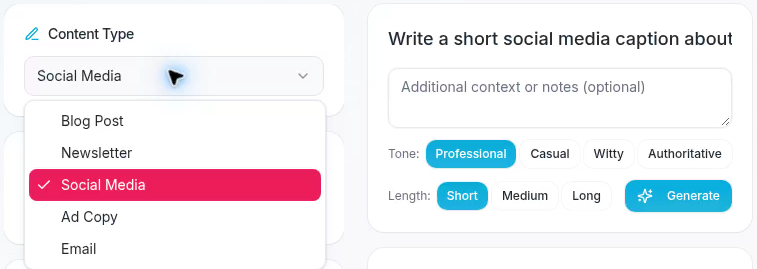
Choose Social Media, Professional, and Short before generating.
3 Generate and review
Select Generate and wait for the writing to appear below the settings. Read the whole result, scrolling through it as needed. This example returns several social channel variants, even with Short selected.
Check facts, business details, promises, hashtags, and calls to action. A prompt can ask for limits, but you still need to check that the generated wording follows them. Choose the version that suits your destination.
To copy the new result now, scroll to the controls below the generated text and select Copy.
4 Find the writing in Content Hub
Open Content Hub and scroll to Recent content. Select Writing to narrow the cards, then select the new Social Media card. Its title starts with the prompt you entered and may be shortened on the card.
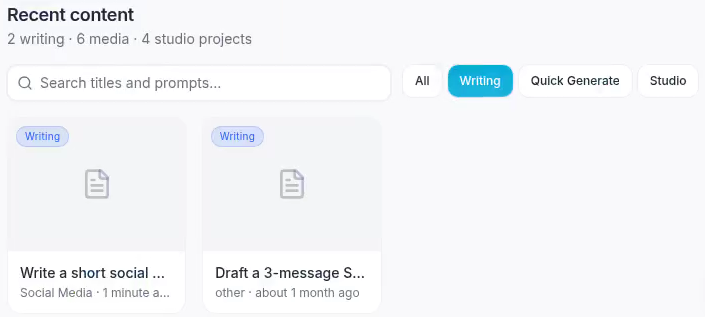
Select Writing, then open the card for your generation.
5 Search Writing History
The card opens Writing History. Enter autumn in Search generations..., then select Social Media. Select the matching entry and check its full prompt, content type, tone, and length to confirm you have the right generation.
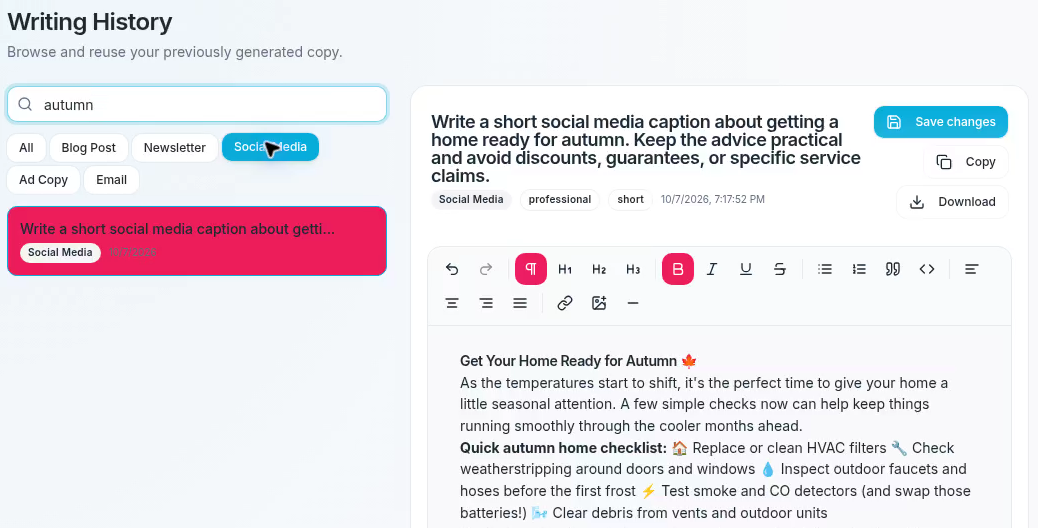
Search for autumn and filter to Social Media to find the same generation.
6 Copy and reuse the text
Select Copy beside the generation in Writing History.
Paste the text into your intended destination. Keep the channel variant you need, correct unsupported details or claims, and check formatting and links before publishing or sending.
Expected result
You have generated writing, found it again in Writing History, and copied it for review and use in your chosen destination.