
Find a previously generated image in Media History, review its prompt and settings, and open the original image. This example locates a completed photo of a suburban home using its media type and a word from the prompt.
Before you begin
Sign in to WundertreOS and select the organization where the media was generated. You need an existing generated item to follow this walkthrough.
1 Open Media History
In StoryCraft, open the Media Library menu and choose WunderHistory to reach Media History. Generated items appear in the list on the left, with the selected item displayed on the right.
2 Narrow the list
Open All Types and select Photo. The menu also includes Graphics and Video. In Search prompts..., enter a word from the prompt. This example searches for suburban.
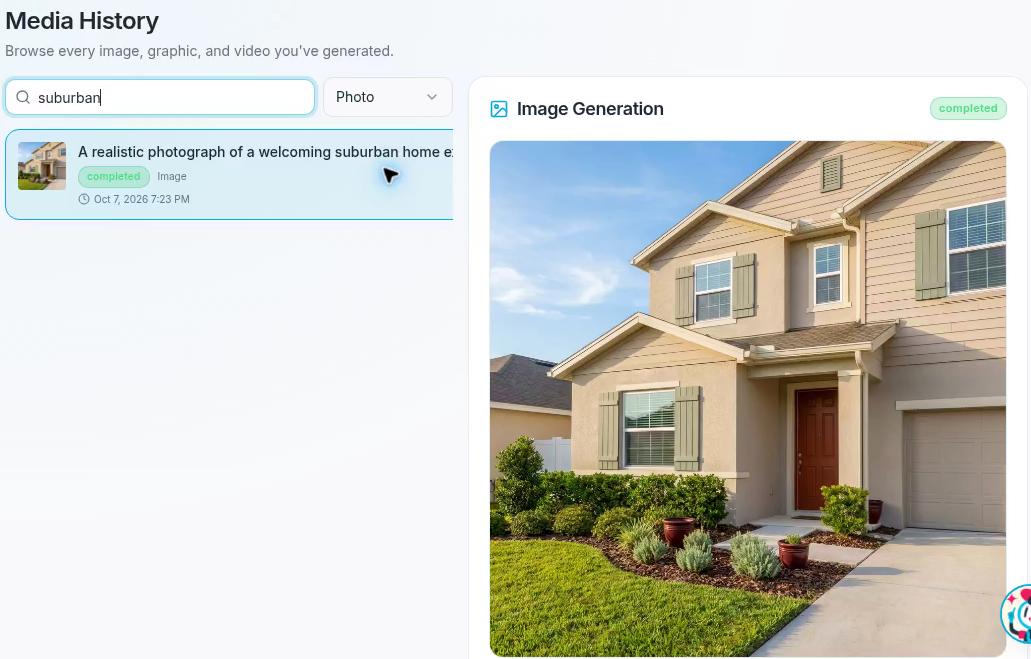
The Photo filter and suburban search locate the completed home image.
Choose the matching item in the left-hand list. Check its preview and completed status to confirm that you have the result you want.
3 Review the generation details
Scroll below the preview to read Prompt and Negative Prompt. Compare the instructions with the image: check the subject, composition, lighting, and any details the prompt asked to include or avoid.
Check Model, Dimensions, and Created to identify the result. In this example, the model is nano-banana-pro and the dimensions are 1024 × 1024.
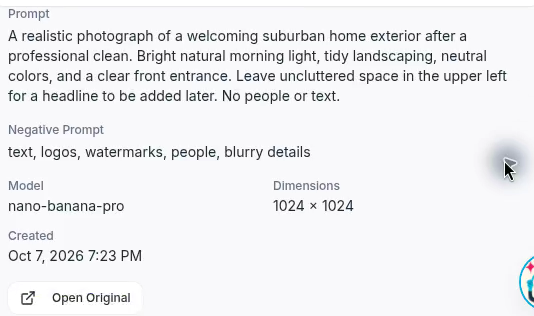
The details preserve the prompt, negative prompt, model, dimensions, and creation time.
4 Open the original image
Select Open Original beneath the generation details. The full image opens in a new browser tab. Inspect the image before using it in your content, then return to the Media History tab when you are finished.

Open Original displays the generated image in its own tab.
Expected result
You have found the generated photo, reviewed its prompt and settings, and opened the original image for a closer look.