
Create an AI photo from a written description, inspect the full-size result, and download a copy. This example makes a square image of a welcoming suburban home exterior.
Before you begin
Sign in to WundertreOS and check the organization where you want to work. Open StoryCraft - Content & Media, go to Content Hub, and choose Quick Photo under QUICK GENERATE. The Photos page contains the Photo Studio form.
1 Describe the photo
In Prompt, describe the subject, setting, lighting, and composition. To follow this example, enter:
A realistic photograph of a welcoming suburban home exterior after a professional clean. Bright natural morning light, tidy landscaping, neutral colors, and a clear front entrance. Leave uncluttered space in the upper left for a headline to be added later. No people or text.
2 Check context and dimensions
For this example, leave Target Audience unselected and set Business Context to Off. Under Dimensions, keep 1024×1024 (Square).
3 Add a negative prompt
Expand Advanced Settings. In Negative Prompt, enter text, logos, watermarks, people, blurry details. This describes what you want the image to avoid. Review both prompt fields before generating.
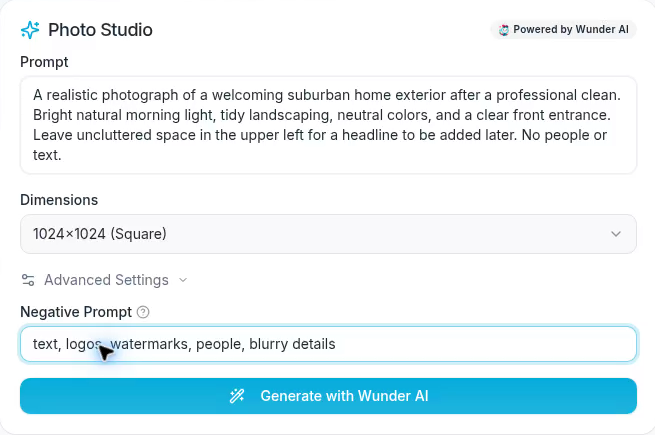
The completed form uses a square image size and a negative prompt.
4 Generate and review the result
Select Generate with Wunder AI and wait for the completed image to appear in Gallery. Generation time and results can vary. Avoid submitting the same request again while you are waiting.
Move over the new photo card to reveal its actions. Select Open full size, the outward-arrow icon, to open the image in another browser tab.
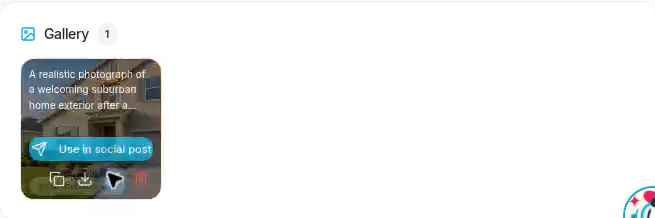
Hover over the Gallery card to reveal its actions.
Inspect the full image before using it. Check the subject, lighting, image edges, and any space requested for later text. A prompt guides the result, so review whether the composition actually meets your needs.
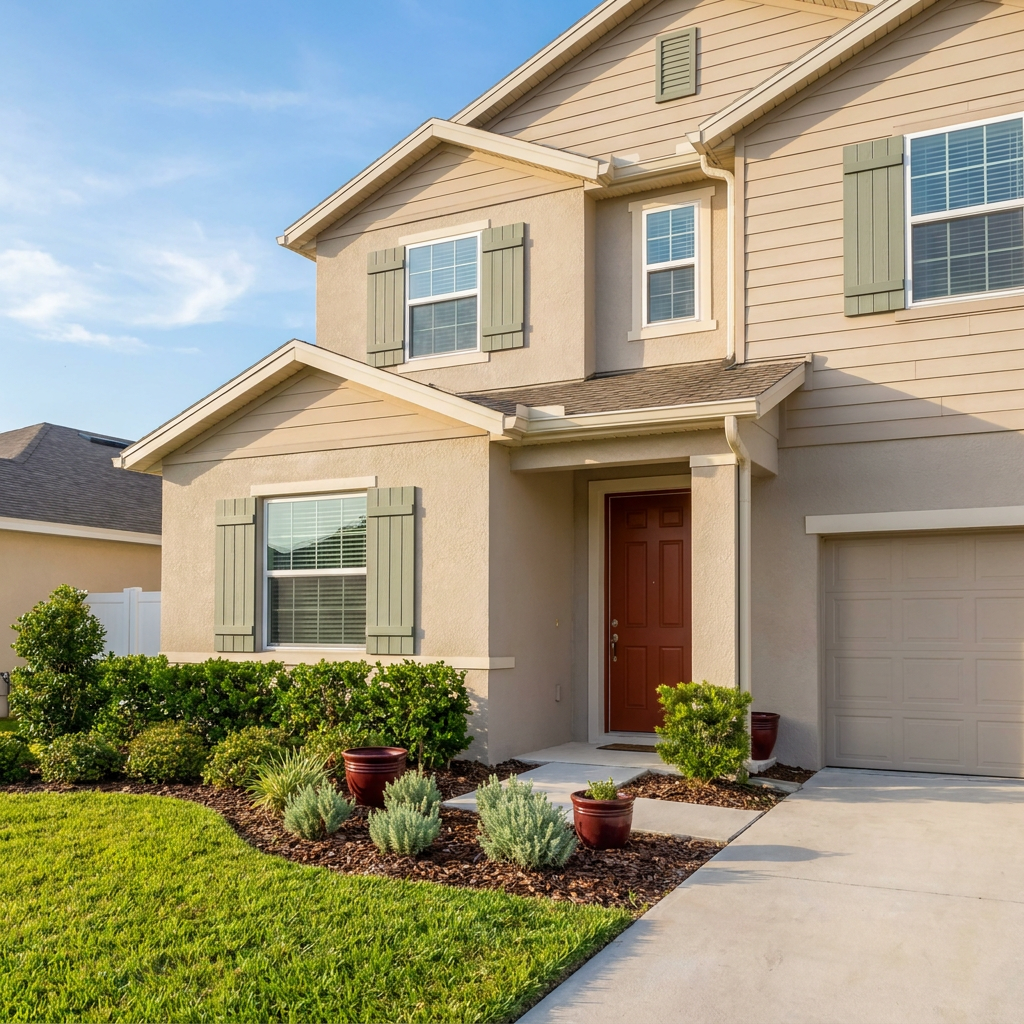
The generated example is a 1024×1024 PNG.
5 Download the photo
Return to the Photos browser tab and move over the same Gallery card. Select Download, the downward-arrow icon beside Copy URL.
A Download started message appears. Check your browser downloads to confirm the file has finished saving, then open it from your computer. The example downloads as a 1024×1024 PNG.
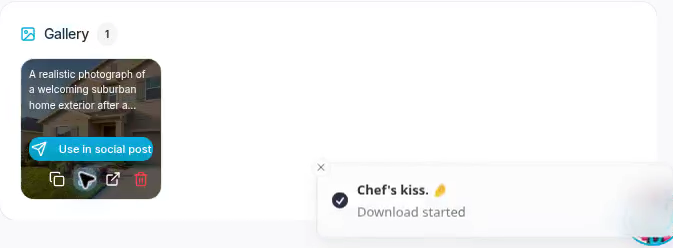
Download saves the image from its Gallery card.
Expected result
You have a completed photo in Gallery and a downloaded full-size image to review and use in your own work.
Related topic
For finding generated assets again, see Find and review generated media.