
Before you start
Have an approved retention policy for the organization. Changing a number can affect later purges, so do not treat the displayed defaults as a recommendation for your business or as legal advice.
For a safe preview workflow, keep Enable nightly automatic purge off and Dry-run mode on. Confirm the currently saved state before editing.
Set the windows
- Open Settings → Data Retention.
- Review the windows for pixel sessions and events, form submissions, email and SMS history, consent events, privacy requests, audit logs, inactive contacts, and call history.
- Enter the approved day values for any categories you intend to change.
- Review Inactive contacts (anonymize). The page describes this as clearing personal-information fields while retaining the row for analytics.
- Review Call history & recordings carefully. Its warning covers both call logs and recordings, including audio permanently removed from Twilio. For this field, 0 means keep forever. Do not assume that interpretation applies to every other field.
- Recheck that nightly automatic purge is off and Dry-run mode is on, then select Save settings.
- Refresh and verify the saved windows and controls.
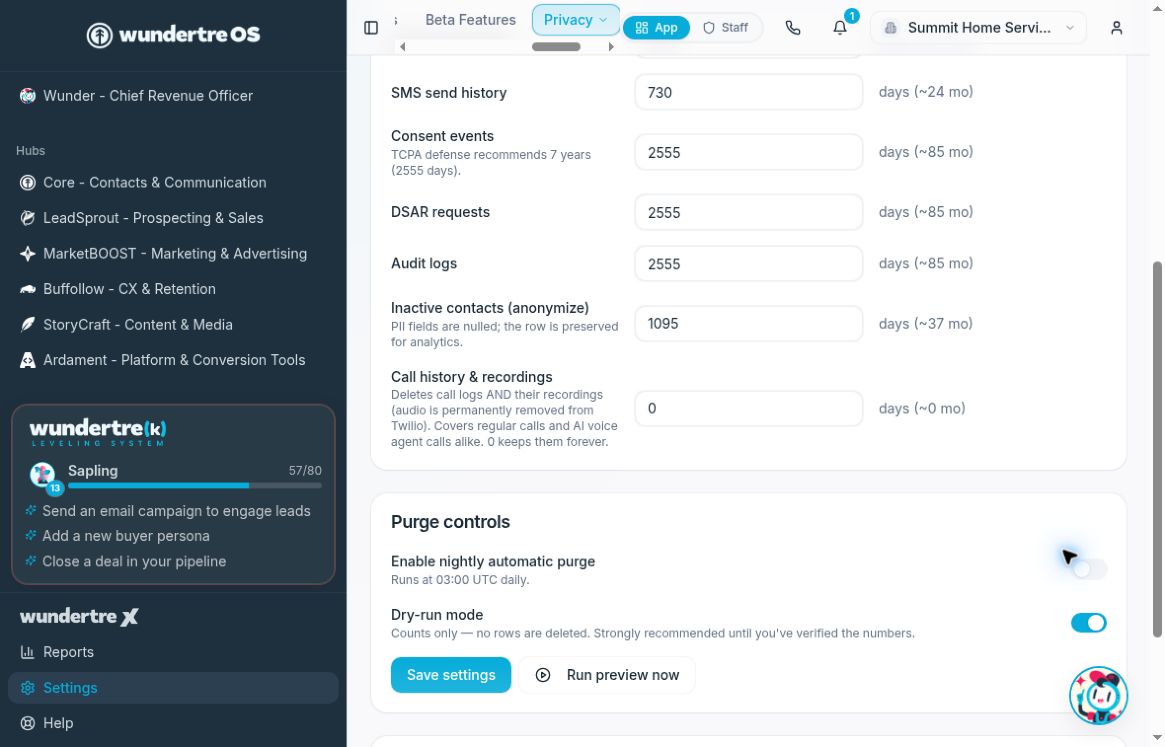
Keep automatic purge off and dry-run mode on when preparing a preview.
Run the preview
- Select Run preview now.
- Wait for the operation to finish.
- Review the newest entry in Recent purge runs.
- Confirm its mode is Dry run, then inspect the summary counts and any errors.
The preview uses saved settings, so save and verify approved values before running it. Previewing records a run but does not delete the matching rows.
Interpret the result
Recent purge runs lists the last 20 runs, newest first. Nothing matched means the displayed run has no positive summary counts; inspect any error indicator before relying on that result. Counts can change as the underlying data changes.
Keep live deletion disabled until the affected scope has been reviewed separately.