
Review the queue
- Open Settings → Privacy Requests.
- On Queue, choose All statuses or a status such as Pending verification, Verified, In progress, Completed, Denied, or Expired.
- Review the request’s Type, Status, Submitted date, Due date, and Region.
- Open the request to review its details, visitor message, verification timestamp, and any resolution notes.
The page also provides a Public privacy portal URL. Use it for the organization’s approved privacy-request entry point. If no URL is available, the organization needs a public slug.
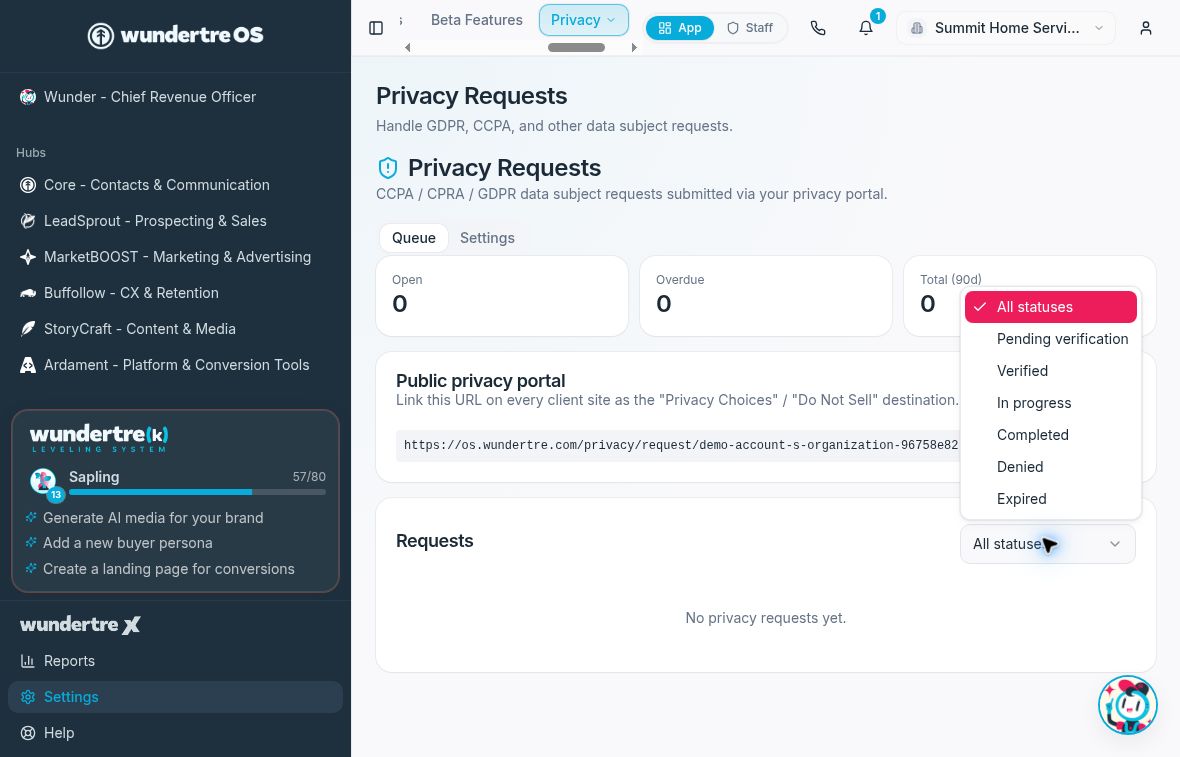
Use the status filter to narrow the queue. The example has no requests.
Understand the available actions
- Mark verified appears for a pending-verification request. Use it only after completing your organization’s required identity checks.
- Fulfill request appears for non-final requests that are no longer pending verification. Its consequences depend on the request type; review that type before proceeding.
- Extend +45d changes the request timeline. Confirm that an extension is appropriate before using it.
- Deny request requires a Denial reason.
- Download export appears when an export is available. Treat the downloaded material as private request data.
These action buttons execute directly without a separate confirmation dialog. Before selecting one, verify the exact request and the intended action. Review the affected data before fulfilling a deletion request, and confirm the authorized recipient before distributing an access export.
Verify an authorized action
After an authorized action, return to the queue and reopen the request. Check the updated status and any resolution information. Do not rely on a success message alone to describe a completed export or deletion.
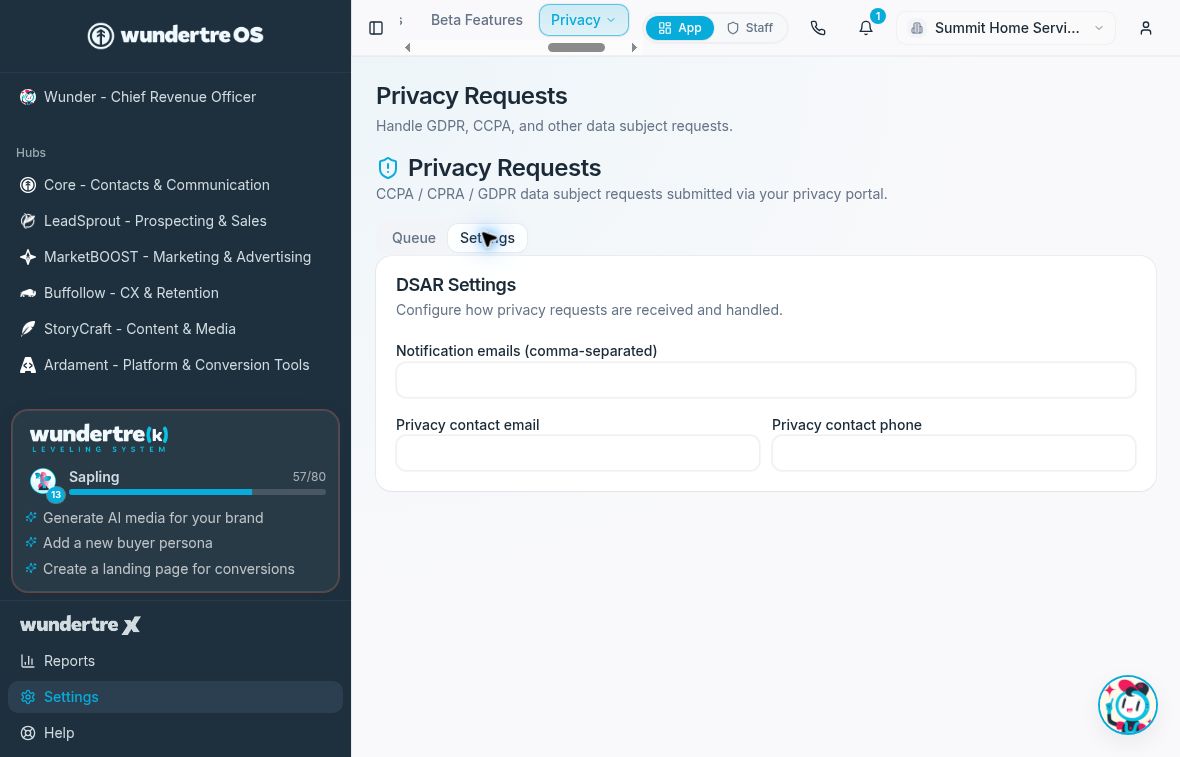
Review notification and privacy contacts before entering approved changes.
Configure contacts carefully
The Settings tab contains notification emails and privacy contact details. These fields save when you leave them. Only enter approved contacts.
The dates and extension controls in the app support your workflow; they do not determine which legal obligations apply to a particular request.