
Find an event
- Open Settings → Audit Log as an organization owner or admin.
- Review the When, Actor, Action, Entity, and Summary columns.
- Use the search field to search summary text, actor name or email, action, or entity ID.
- Use All actions to select a particular action.
- Use All entities to select a particular entity type.
- Combine search and filters to narrow the results.
The action and entity choices come from the loaded events. A missing event or filter option is not proof that the action never happened; it may fall outside the loaded subset or your current filters.
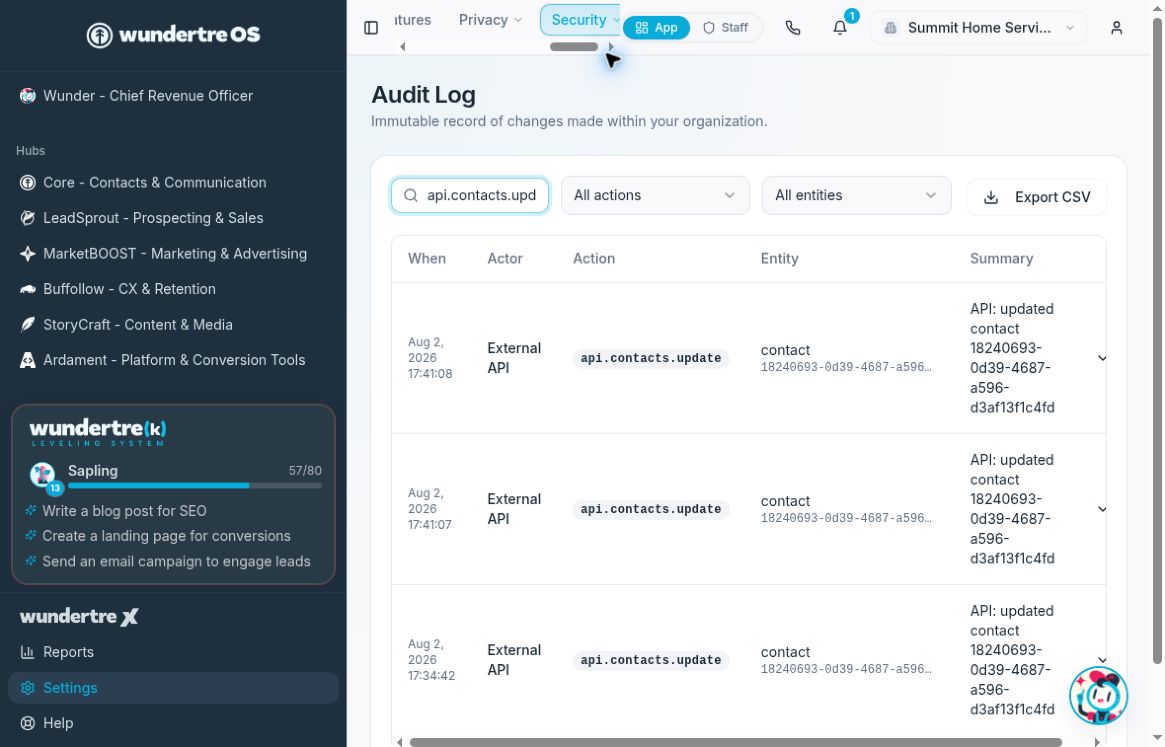
Search and filters narrow the loaded audit events. The example contains External API demo activity.
Inspect additional details
For a row with additional metadata, use its expand control to inspect the details. Metadata can contain private information, so review it before taking a screenshot or sharing the screen.
If you see No audit events found, clear the search and return both filters to All before concluding there are no loaded matches.
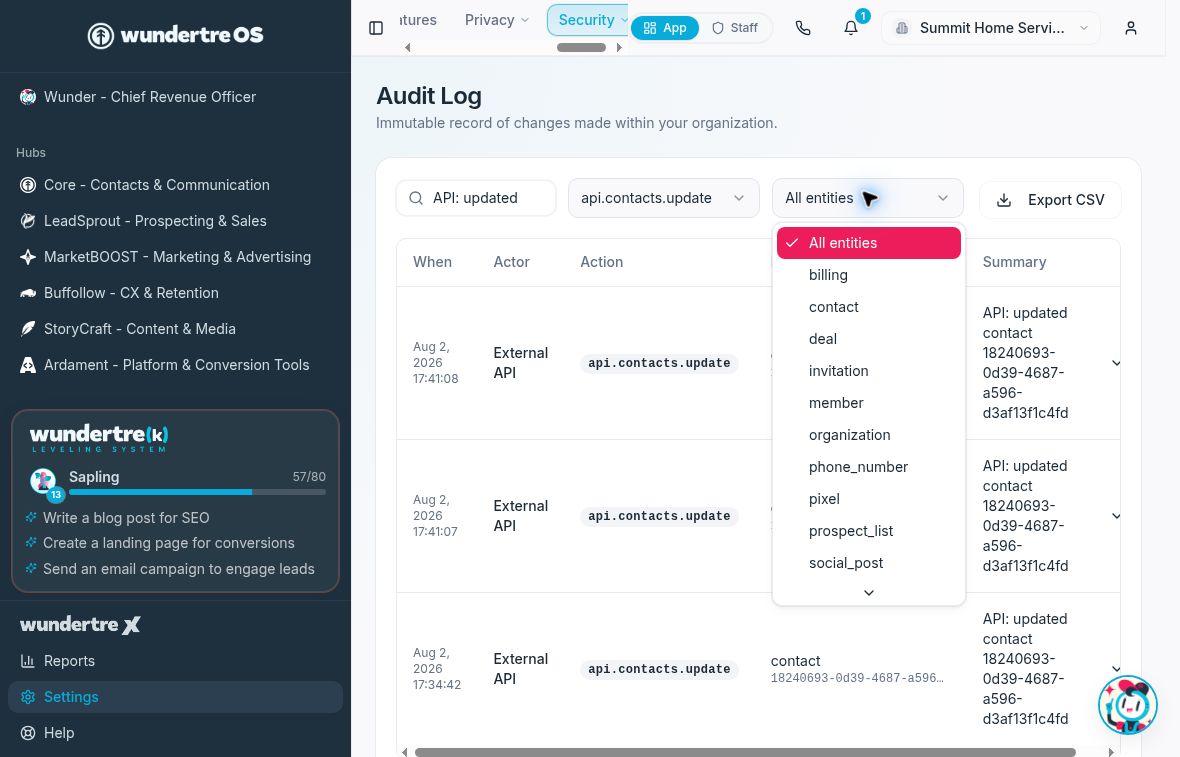
Combine entity and action filters with search before exporting the matching rows.
Export the current results
- Set the search and filters to the records you need.
- Review the matching rows and the event count.
- Select Export CSV. The control is unavailable when no rows match.
- Open the downloaded file and check its scope and contents before using or sharing it.
The example download contains three matching demo rows with External API as actor and no actor email values. Review your own export independently; other records may contain personal information.
The CSV includes timestamp, actor name, actor email, action, entity type, entity ID, and summary. Expanded metadata is not included. The filename follows the audit-log date pattern.
Handle the export carefully
This is an export of filtered results from the most recent 500 loaded events, not an unlimited historical export. Keep the file in an approved location and share it only with authorized recipients. Names, email addresses, entity IDs, and summaries can reveal private activity.
If you see Admin access required, ask an organization owner or admin to review the information you need.