
Confirm the context
Check that you are in the correct organization and wait for loading to finish. Record the page name, the action you tried and the exact message. Avoid treating a temporary empty state as a confirmed account restriction.
Check your role
Organization owners and admins manage people, billing and settings. Managers can delete and export within granted hubs. Members have basic read-and-write access within granted hubs.
For example, View-only access in Billing & Usage means you can inspect information but an admin must make billing changes. A disabled action may be appropriate for your tier even when you can open the page.
Ask an admin to review Settings → Users → Manage access for your account if the role does not match your responsibilities.
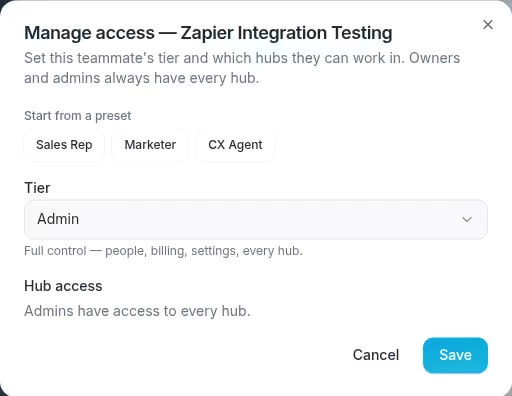
An admin can review the teammate’s tier and hub access.
Check hub access and subscription
For non-admin members, the available hubs depend on both organization subscriptions and per-person hub grants. In the access editor, not subscribed identifies a hub outside the organization's current subscription.
Granting access to a hub is not a purchase. Likewise, changing a subscription does not replace a review of the individual's access settings. Have an admin identify which restriction applies before making either change.
Check usage and budgets
If the message concerns a usage limit or insufficient funds, review Settings → Billing. Check the relevant wallet, usage allowance and consumption rate.
For prospecting, an individual or organization-default budget may also apply. Adding funds to a wallet does not necessarily remove a person's prospecting cap. Ask an admin to check that budget in User Management.
Check feature availability
A Coming soon or limited-availability screen can be an organization-level feature restriction. For example, WundertreX can have a separate availability gate in addition to subscription eligibility. A broader role or an account upgrade should not be assumed to unlock every feature.
Where a feature requires a connected service, check its setup and status on the relevant settings page. A connection-status label alone does not establish that every downstream workflow is working.
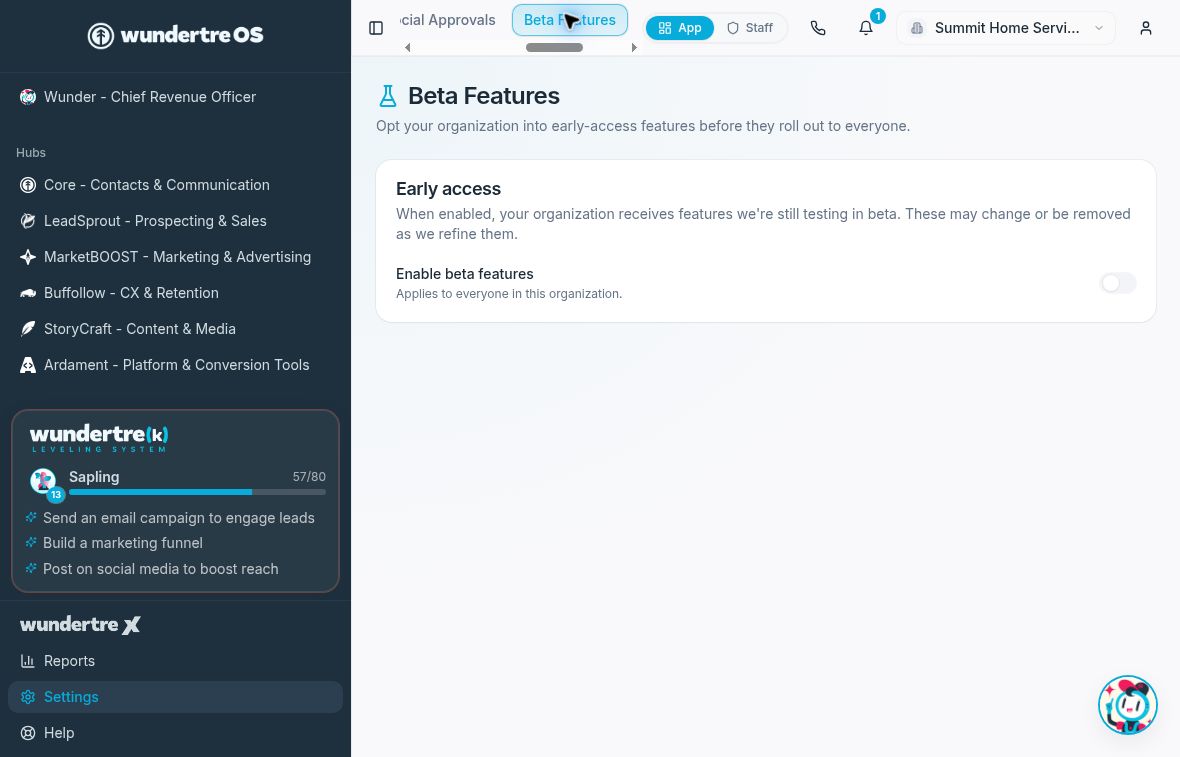
Feature availability can have additional requirements beyond role and subscription.
When to contact support
If the restriction remains unexplained, provide the organization name, page, intended action, exact error and approximate time. Include a sanitized screenshot if useful. Do not include passwords, API keys, webhook secrets, payment details or another person's private data.
Describe what you checked so support can distinguish an expected restriction from a loading or configuration problem.