
Before you begin
Sign in to WundertreOS and confirm the organization where you want to work. Use a website you are authorized to modify. Review the privacy and consent setup before installing tracking on a live site. Coordinate with the person responsible for your website’s templates or tag manager.
1 Choose the correct pixel
Open Settings → Tracking Pixel. Check the pixel’s name and website domain. If a new pixel is required, use Create Pixel and review Pixel Name and Website Domain before creating it. Creation can also provision a visitor-identification provider configuration for the website, so review that scope before proceeding. Avoid creating a duplicate for an existing installation.
2 Copy the current embed
Open Install and use Embed Code for the chosen pixel. Follow the page’s instructions to place the current snippet in the head of the relevant website pages. Use one approved installation path and avoid adding duplicate copies through both a template and a tag manager.
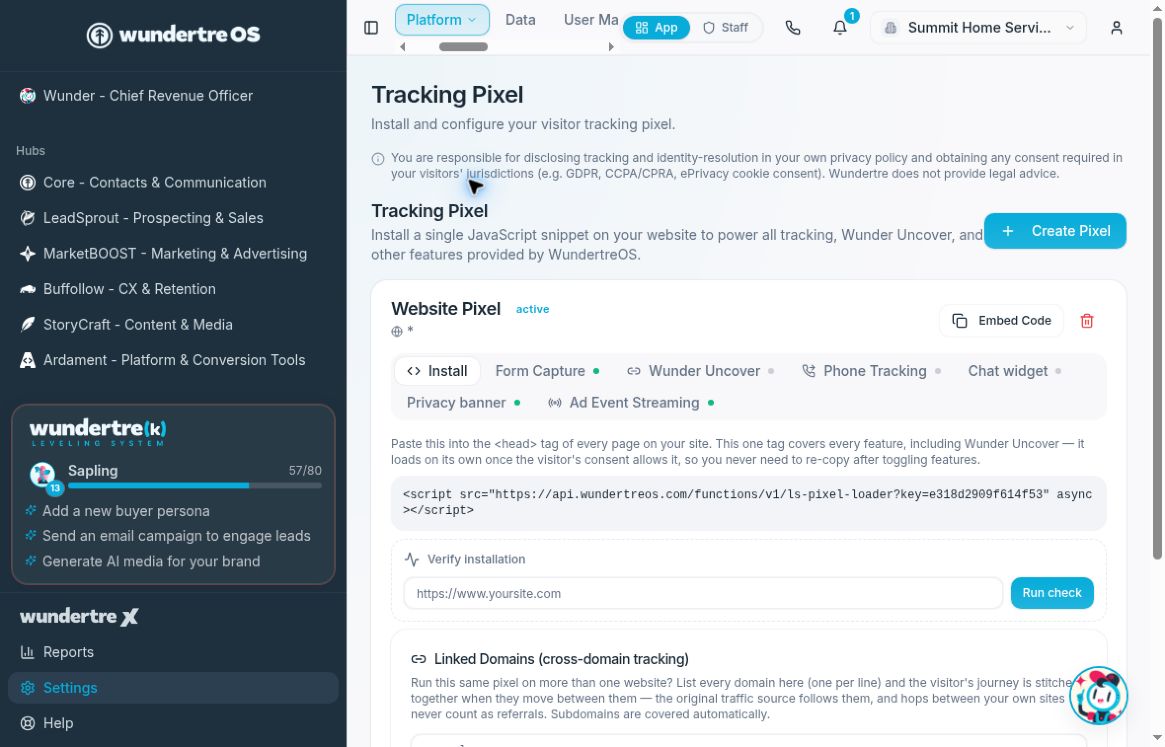
Use the current embed snippet and the Verify installation controls for your selected pixel.
3 Review consent before testing
Check the pixel’s Privacy banner configuration and the website’s consent tool. Use the current loader snippet for supported features; do not add a separate visitor-identification script to bypass the consent flow.
4 Run the installation check
Under Verify installation, enter the actual website URL and select Run check. Read the result and its supporting details. The check can use the site’s HTML and recent pixel-event evidence; a tag-manager installation may not appear directly in raw page HTML.
5 Interpret the result
Compare the current result with Last checked rather than relying on an old date. If the check does not verify the install, confirm the URL, deployed snippet, and consent behavior before retrying. Do not force tracking on to manufacture a passing result.
What to check
A verified installation check is evidence about installation at the checked time. It does not establish that form capture, chat, visitor identification, call attribution, or advertising events all work.
The example screen shows an existing active pixel with a wildcard website domain and no completed installation-check result. Confirm the actual destination website before installing or testing.
Example planning checklist
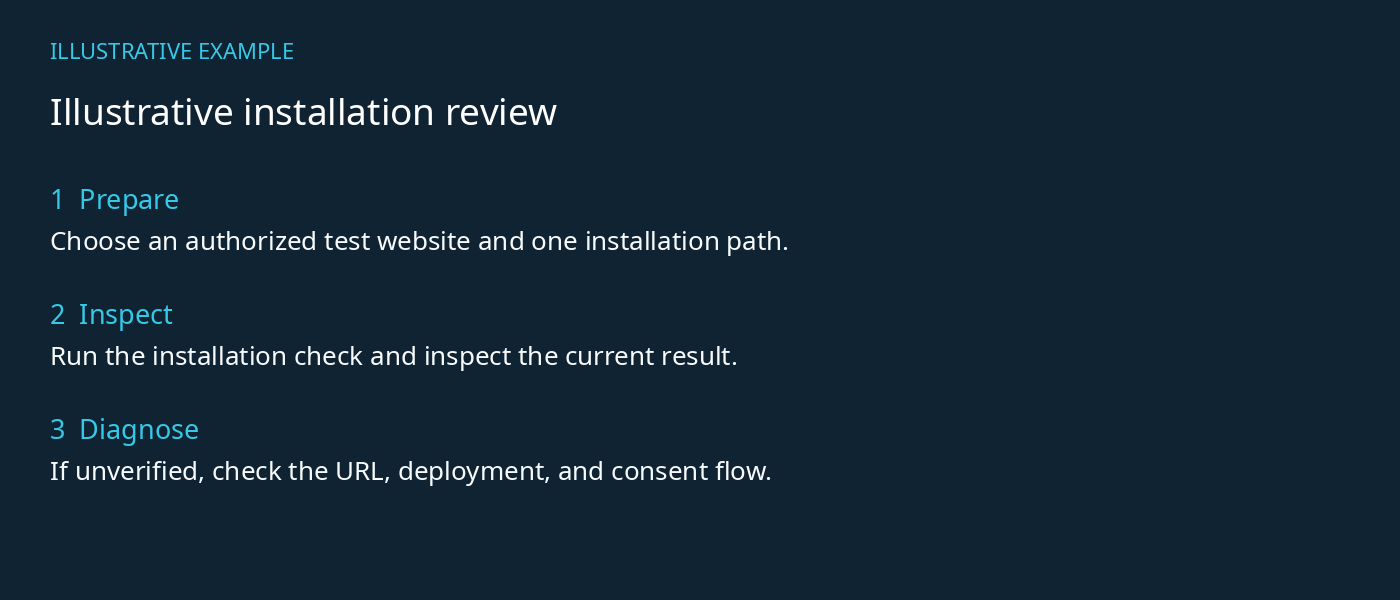
This checklist is an example workflow, not an installation result.