
Before you begin
Use an organization owner or admin account. Confirm the organization, the teammate's email address and the level of access they need. An invitation sends an email and can establish access to organization data. Review any applicable seat limits or charges before inviting someone.
Invite a teammate
- Open Settings → Users.
- In Invite Team Member, enter the teammate's Email.
- Choose Role: Member, Manager or Admin.
- Review the address and role before selecting Invite.
- Read the result message and check the relevant member or invitation list.
Member is the basic read-and-write tier within granted hubs. Manager adds delete and export capabilities in granted hubs. Admin has broad control over people, billing, settings and hubs. Use the least access the teammate needs.
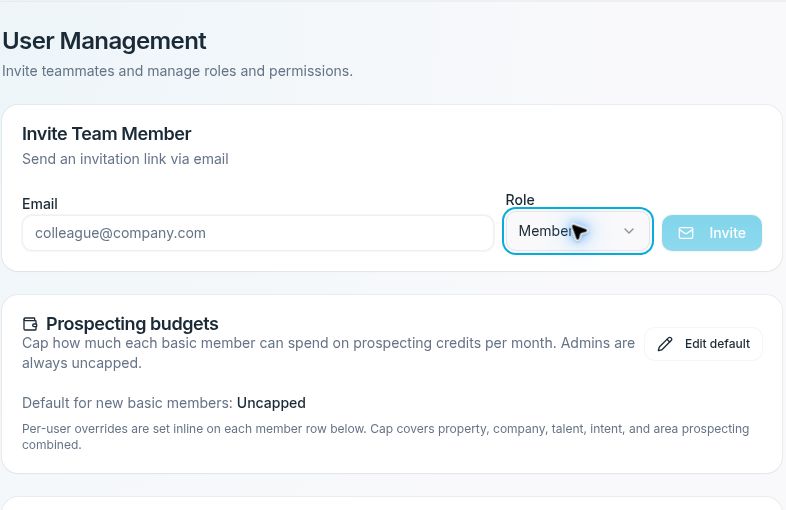
Review the email address and role before sending an invitation.
Check sign-up progress
Review Team Members and, when present, Invitations awaiting sign-up. Admin views can distinguish teammates who have signed in from those whose first sign-in is still unfinished.
A teammate may already have a member record while still appearing as pending first sign-in. Do not assume that a saved invitation or a member row means they received the email or completed setup.
If the app reports Invitation saved but email failed, the invitation was saved but delivery did not succeed. Check the existing record before sending again.
Resend or revoke an invitation
Use the resend control on the relevant invitation or pending teammate. Verify the recipient before resending because this sends another email.
Use the revoke control only when you intend to cancel the pending invitation. Revoking an invitation and removing an existing member are different actions; inspect the member list if you need to review current access.
Manage an existing member
Use Manage access on the teammate's row to review their tier, hub access and prospecting budget. See Set member roles, hub access and prospecting budgets for those controls.
Removing a member changes their organization access. Confirm the person and the operational impact before using the removal control. Do not rely on a second confirmation screen appearing.
If an invitation still has not arrived
Confirm the email address and ask the teammate to check their mail filters. Use the available resend control for the existing record. If the page reports an error, capture the message without exposing private teammate information and contact support.