
Open the access editor
- Sign in as an organization owner or admin and open Settings → Users.
- Find the intended teammate in Team Members.
- Select Manage access on their row.
- Confirm the person's name in the dialog before changing any setting.
The editor is not offered for your own row or the owner's row.
Choose a tier and hubs
Under Tier, choose the access the teammate needs:
- Member: read and write in granted hubs, without delete, export or configuration access.
- Manager: delete and export in granted hubs, without people, billing, settings or configuration access.
- Admin: broad control over people, billing, settings and all hubs.
You can start with Sales Rep, Marketer or CX Agent under Start from a preset, then review and adjust the tier and hub choices.
For a non-admin, review every Hub access checkbox. A hub marked not subscribed is not included in the organization's current subscription. Granting that hub does not purchase it. Owners and admins are not restricted by the per-person hub checklist; feature-specific availability can still apply.
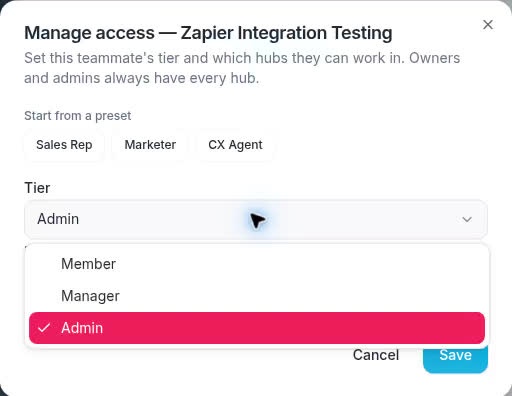
Tier determines capabilities. Review the correct teammate before changing it.
Set a prospecting budget
Where the budget section is available, choose:
- Use org default to inherit the organization's default cap.
- Uncapped (override) to remove this person's individual cap.
- Custom monthly cap to set the displayed monthly dollar limit.
Admins are exempt from these per-user prospecting caps. An uncapped member can consume available funds; uncapped does not mean free usage. A prospecting cap is not a limit on all spending throughout WundertreOS.
To change the default, use the edit control in Prospecting budgets, review Monthly cap (USD) or No default cap, and select Save. This affects basic members who do not have a per-user override.
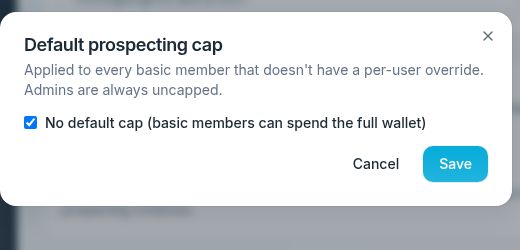
The organization default cap is separate from a teammate’s override.
Save and verify
Review the complete tier, hub and budget selection, then select Save. Reopen the teammate's access editor and check each saved value. Ask the teammate to verify the intended access in their own account when needed.
If Failed to update access appears, check all three settings before retrying. The save applies changes in sequence, so an error does not prove that every earlier change was rolled back.
If the prospecting budget section is absent immediately after changing an admin's tier, reopen the editor after the role has saved and check it again.