
Before you start
Check that you are in the intended organization and that its E-signature account shows Active. Have an approved logo, colors, and any signing-footer links ready. Syncing changes an external account, so confirm the intended branding before selecting the sync button.
If your account is Pending
The account shown below is Pending and offers Set up now. Complete your organization’s approved account setup first. Set up now starts provisioning; it does not preview or sync branding. Wait until the account shows Active before following the sync steps.
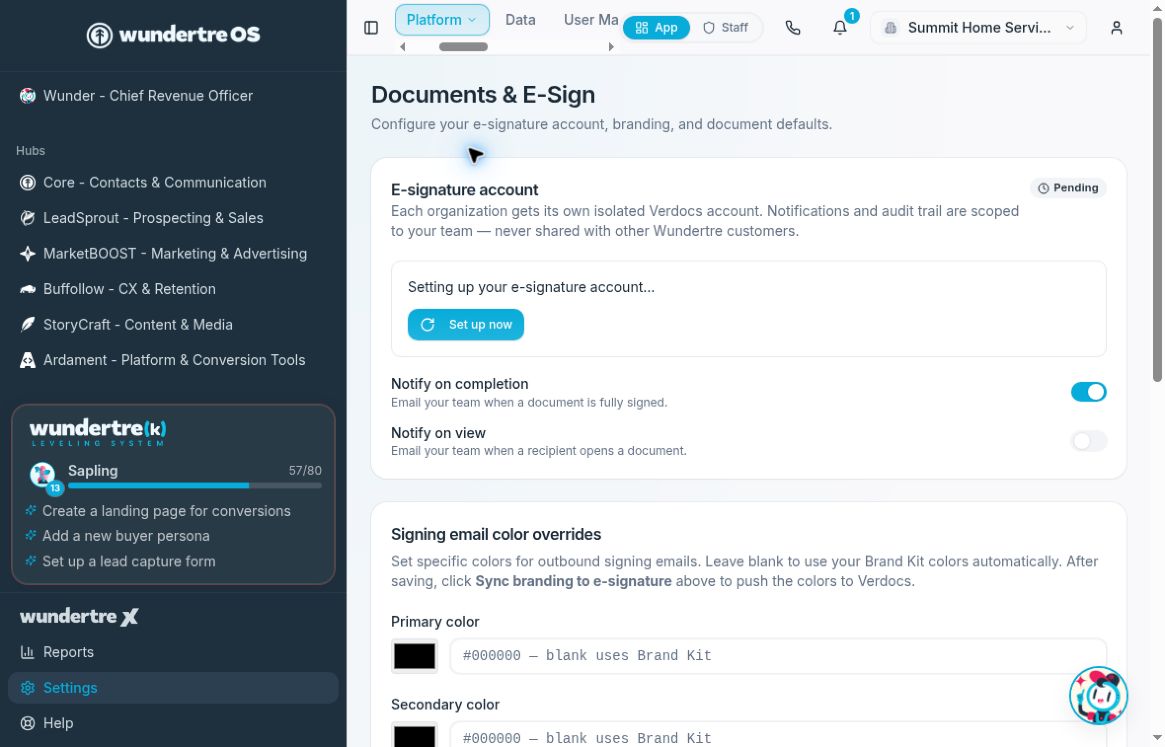
Pending means account setup is not complete. Sync branding is available only after the account is ready.
Review and save your branding
- Open Settings → Documents & E-Sign.
- In E-signature account, check for Active. When the Brand Kit preview is available, review the approved logo and colors.
- If needed, use Brand Kit to prepare the organization’s approved logo and colors.
- Save any Signing email color overrides and Signing footer & legal links changes using their separate Save buttons.
- Refresh and verify the saved values before continuing.
The preview displays Brand Kit assets. Check the override fields separately when you use signing-email-specific colors; do not use the preview alone to verify those overrides.
Sync to Verdocs
- When you are ready to update the external account, select Sync branding to e-signature.
- Wait for the result.
- Read the complete message, including any warning that some items could not be synced.
- Check the affected branding in the signing experience through your organization’s approved verification process.
A partial-sync warning means you should review the items named in the warning before treating the update as complete.
If you cannot sync
- If the account is Pending or Failed, account setup needs attention. Set up now and Retry setup perform provisioning; they are not preview controls.
- If no brand assets are available, the page directs you to add a logo or colors in Brand Kit.
- If syncing fails, retain the displayed error details for support without sharing account identifiers publicly.
Notify on completion and Notify on view are separate settings that save immediately. You do not need to change them to sync branding.