
Before you begin
Sign in to WundertreOS and confirm the organization where you want to work. Know which website, landing page, or Experience you want to publish and who manages its domain. Use a domain or subdomain you own and are authorized to connect.
1 Identify the publishing destination
Open Settings → Domains. Review Website Domains, Landing Page Domain, and Experience Domain. Do not enter a domain in a different section simply because another section is already active.
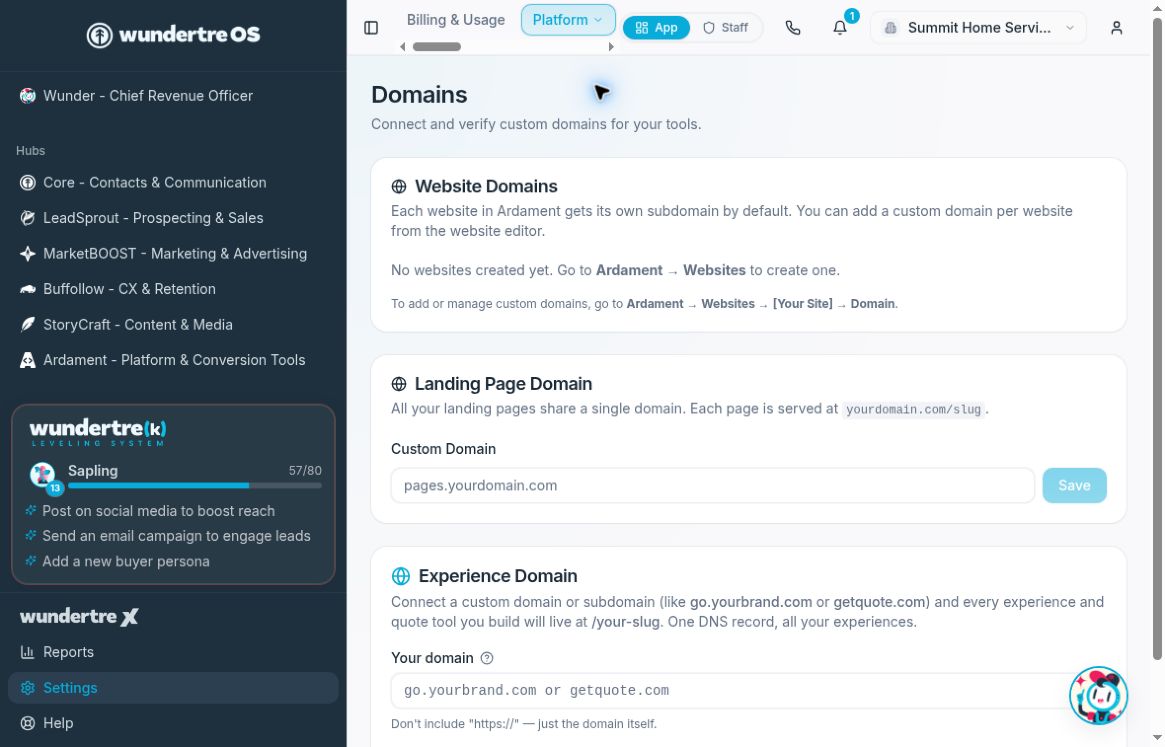
Website Domains, Landing Page Domain, and Experience Domain are separate publishing controls.
2 Connect a website domain
Each website has its own domain setup. Review its status under Website Domains, then follow Ardament → Websites → [Your Site] → Domain to manage that website’s custom domain. The overview may show a default subdomain, a custom-domain status, or Not published.
3 Connect a landing-page domain
Landing Page Domain applies to the organization’s landing pages, with individual pages served under their slugs. Review any existing domain before adding Custom Domain and selecting Save. Changing a shared domain can affect more than one page. Saving a landing-page domain can also attach it to the hosting provider. Save only a domain your organization intends to connect. If it saves but cannot link to hosting, read the warning and complete the DNS instructions before using the matching check.
4 Connect an Experience domain
Use Experience Domain for the shared Experience publishing destination. Enter the hostname in Your domain, without https://, then review Connect Domain and the setup instructions. This domain is shared by the organization’s Experiences and quotes, each at its own slug. Check the list of Experiences associated with the domain when it is available.
5 Complete the matching DNS setup
Copy the DNS instructions from the specific destination you are connecting. Ask the domain administrator to apply the authorized records, then use the relevant readiness check. Verify the intended published page at its actual address after setup.
What to check
Confirm the domain belongs to the correct destination and that the intended public page opens. A domain saved in one section does not establish readiness for the others.
Related guides
A0386 Add DNS records and check domain readiness