
Plan the field
Choose a clear name, a stable key and a type that matches the information you need. Review existing fields first so you do not create a duplicate. Coordinate changes with anyone who uses the field in forms, workflows or integrations.
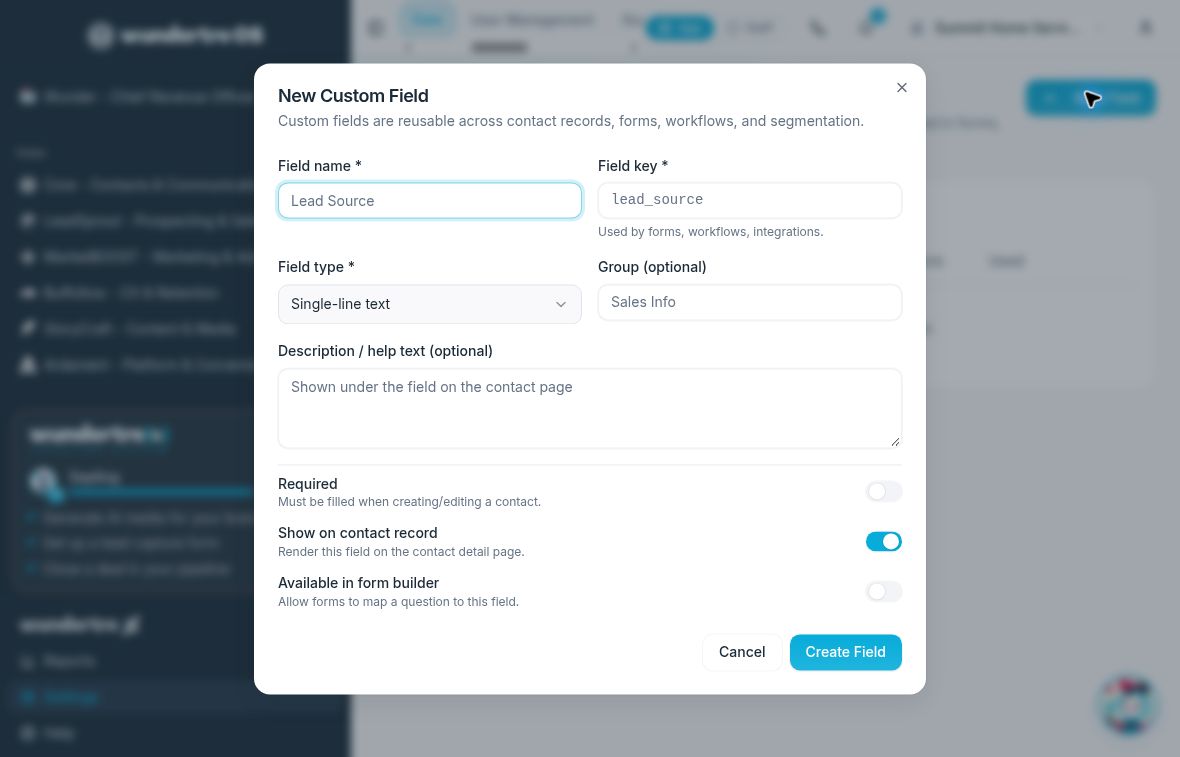
Choose a stable name and key, then review the field type and visibility.
Create a field
- Open Settings → Custom Fields and select New Field.
- Enter Field name. The Field key is generated from the name until you edit the key yourself. Review the key carefully because other features use it to identify the field.
- Choose Field type. Options include text, number, currency, date, date and time, dropdown, multi-select, checkbox, URL, email and phone.
- For a dropdown or multi-select field, enter Options, one per line.
- Add an optional Group and Description / help text.
- Review Required, Show on contact record and Available in form builder.
- Select Create Field. Check the resulting row in Contact Custom Fields, including its key, type and visibility columns.
Making a field available in the form builder lets a form map a question to that field. It does not add a question to an existing form for you.
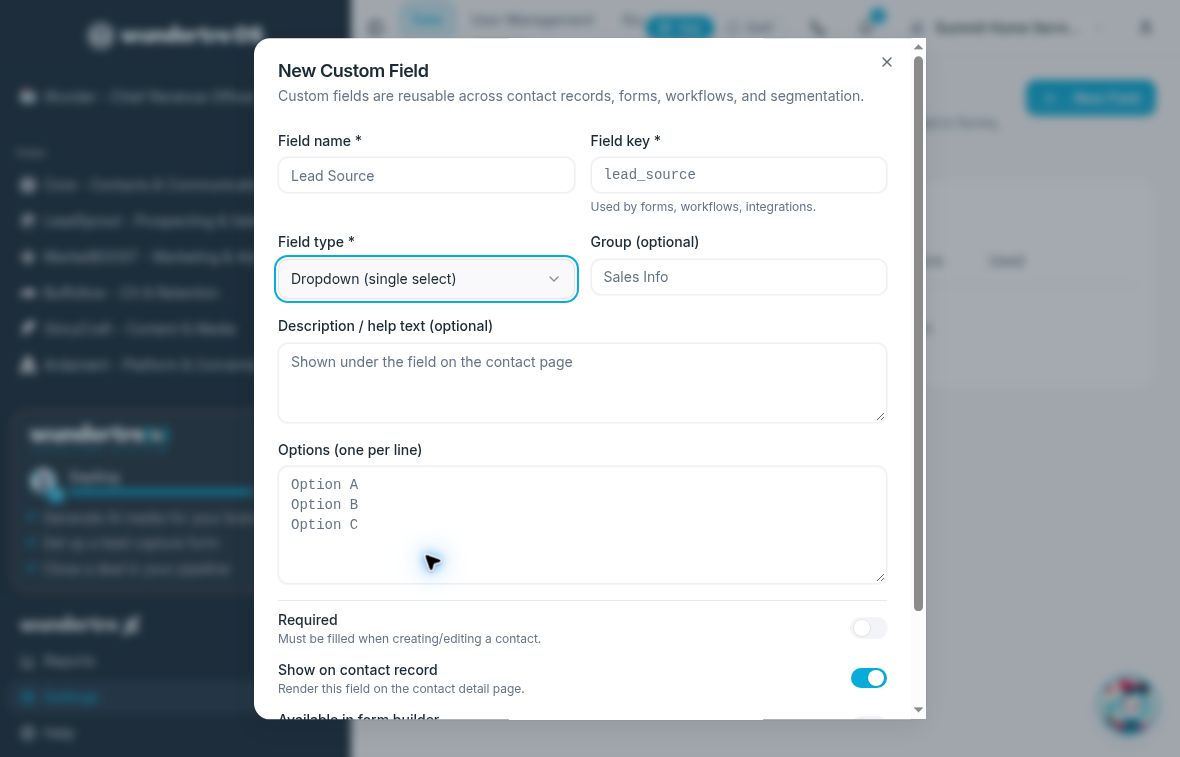
Dropdown and multi-select fields use options entered one per line.
Edit a field
Select the pencil icon on the field's row. Review the field definition, make the intended change and select Update Field. Check the saved definition after the dialog closes.
Take particular care when changing a key, type, options or required setting on a field already in use. Review the affected forms, workflows and integrations as part of the change.
Change the order
Use a row's up or down arrow to move the field in the list. These controls save the order immediately; there is no separate Save button. Refresh the list to check the resulting order.
Delete a field
Read Used before choosing the trash icon. The confirmation dialog states how many stored values will be removed.
Deleting permanently removes both the field and its stored values across contacts. This cannot be undone. Select Cancel if you need to keep the data or are unsure about dependencies. Confirm Delete only after reviewing the field, stored values and affected workflows.
If saving fails
A field name and key are required. Read any Save failed message, correct the problem and check the list before trying again. An empty options list or a key change deserves a careful review even if the dialog lets you continue.