
Before you start
Choose the correct organization. Have approved colors and public legal-page URLs ready. Review existing signer roles before adding or removing a default.
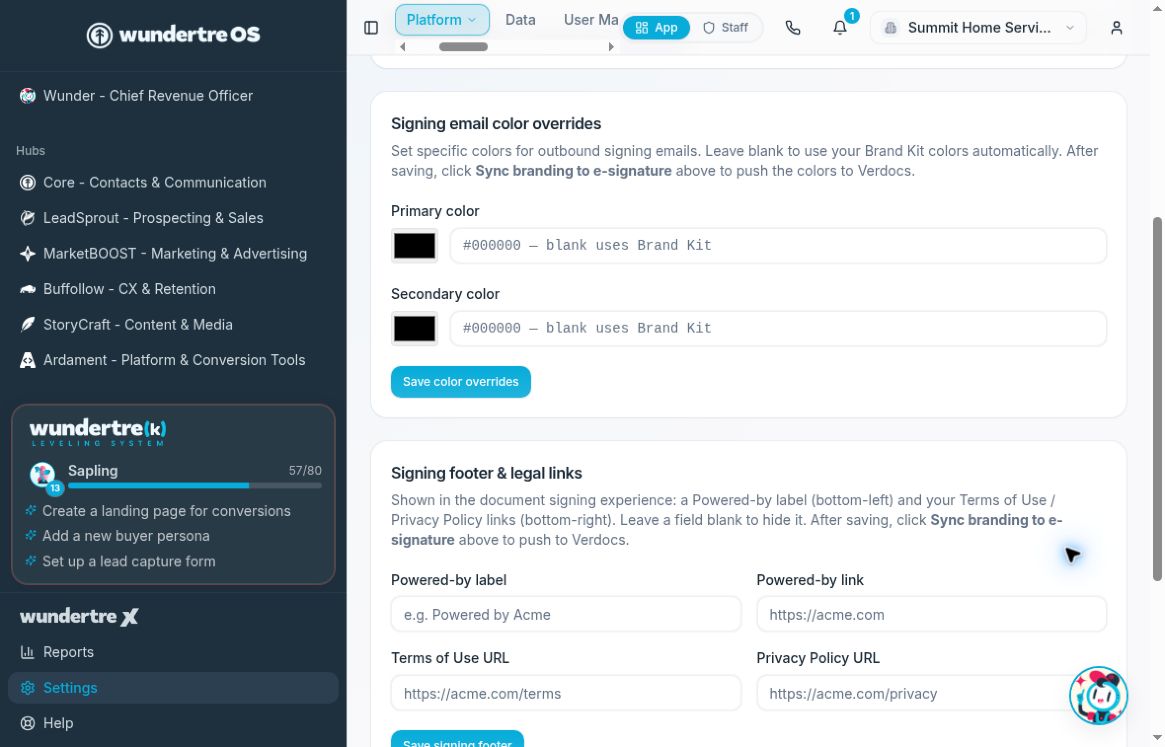
Review the signing color overrides and footer fields. Save each section separately.
Set signing email colors
- Open Settings → Documents & E-Sign.
- Find Signing email color overrides.
- Set Primary color and Secondary color using the color pickers or color-value fields. A blank override uses the corresponding Brand Kit color.
- Select Save color overrides.
- Refresh the page and confirm the saved values remain.
The Clear override button writes immediately. Use it only when you intend to remove that override, rather than as a way to discard an unsaved edit.
Set the signing footer
- Find Signing footer & legal links.
- Enter the approved Powered-by label and Powered-by link.
- Enter your Terms of Use URL and Privacy Policy URL. Leave a field blank to hide it.
- Select Save signing footer, then refresh and check the values.
These settings describe the footer in the signing experience. Follow “Sync brand settings to the e-signature account” to send approved branding changes to Verdocs.
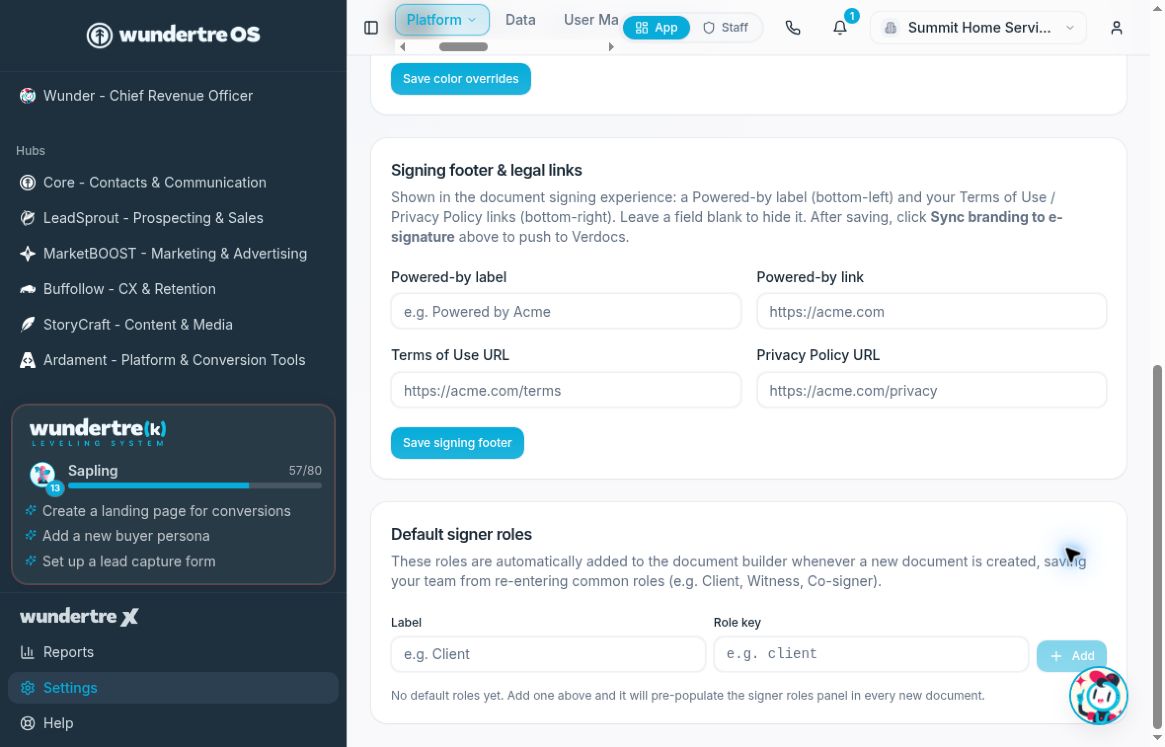
Enter a role label and review its key before selecting Add.
Add a default signer role
- In Default signer roles, enter a Label, such as Witness.
- Review the generated Role key. The key identifies the role separately from its display label.
- Select Add.
- Confirm the role appears in the list.
Default roles populate the signer roles panel when a new document is created. Do not assume they update existing documents. The trash icon removes a role directly, without a separate confirmation screen.
Check your result
Reopen the settings page to verify colors, footer values, and the role list. A saved setting does not establish that branding has been synced or that any document has been sent or signed.