
Find the four billing views
Open Settings → Billing and wait for the page to finish loading.
- Plan & Wallet shows the current plan and applicable wallets.
- Usage shows the consumption wallet and usage meters.
- Consumption rates shows the consumption catalog and, when available, WundertreX credit rates.
- Billing history shows the wallet ledger and the billing-portal link.
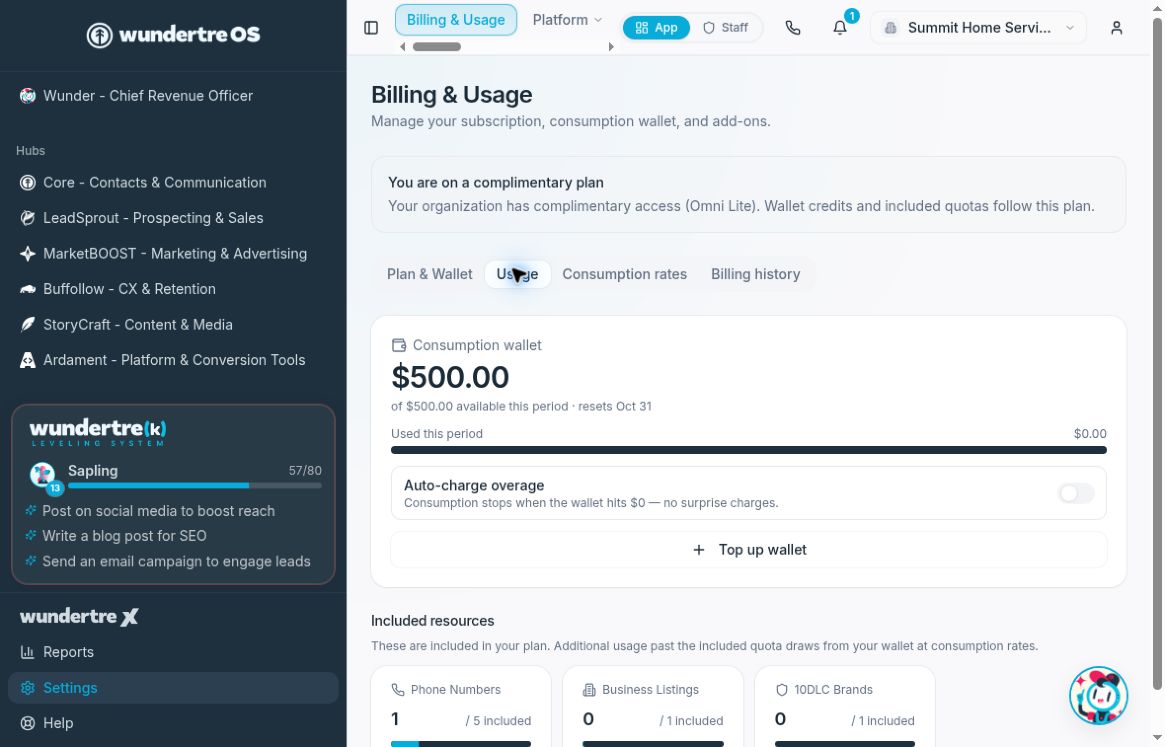
Usage separates the wallet balance from the amount used this period.
Read the consumption wallet
The Consumption wallet shows the current balance, the amount available this period, Used this period, and the reset date when one is available. The period's available amount can include top-ups or grants as well as the plan allowance.
Check the Auto-charge overage setting to understand what happens at zero. Changing the switch saves a billing setting immediately; you do not need to change it to review usage.
Other wallets serve different purposes. The Outreach wallet holds prepaid funds for CTV ads and direct mail and does not reset monthly. WundertreX credits measure agency work rather than dollar-denominated consumption, and their card appears only when applicable.
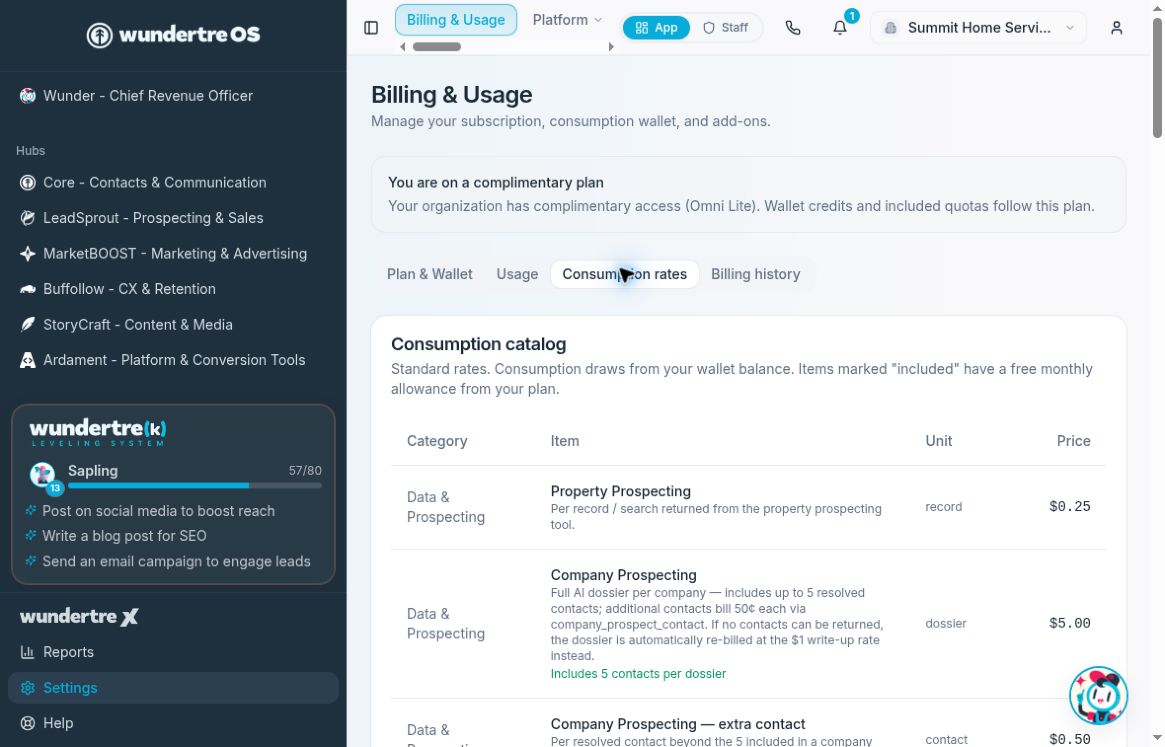
Read the item, unit, and price together in Consumption rates.
Check a rate
- Open Consumption rates.
- Find the item in the Consumption catalog.
- Read its Category, Item, Unit and Price together.
- Read any included-allowance or per-item description below the item name.
- Compare the same product and unit with the estimate in the workflow you plan to run.
Catalog prices are the rates shown in the app; they do not independently establish a third-party provider’s actual charge.
A rate for a contact, lookup or other unit should not be compared with a differently measured product. If labels or prices appear inconsistent, record the item name, unit and workflow estimate for support before running a paid operation.
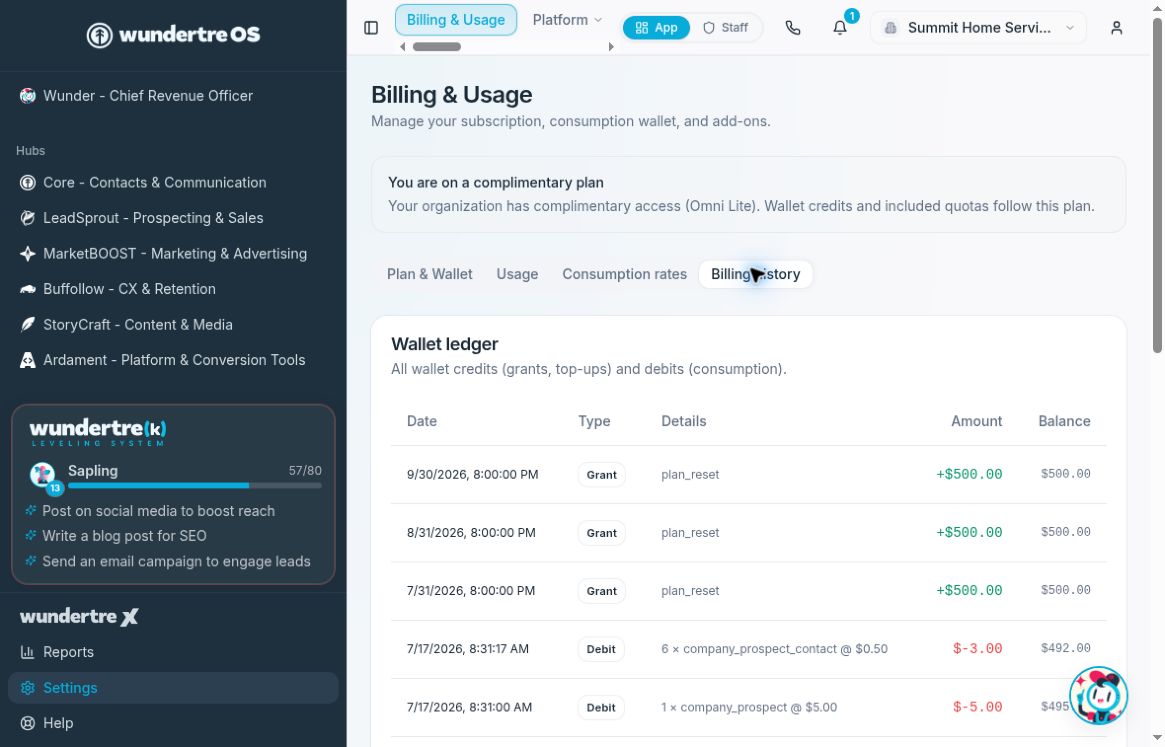
Wallet ledger entries show details, the credit or debit, and the resulting balance.
Read a ledger entry
- Open Billing history and find Wallet ledger.
- Use Date and Type to identify the credit or debit.
- Read Details for the quantity, usage identifier and unit price, or the credit source.
- Read Amount for that entry and Balance for the balance after it.
Positive entries add funds; negative entries consume them. An Outreach badge identifies that wallet. Campaign activity can be grouped into a single displayed entry, so a displayed row is not necessarily one individual send. The page loads the latest 100 displayed ledger entries.
The wallet ledger is distinct from your invoices and payment methods, which are available through the Stripe billing portal.
If a view looks empty
Wait for loading to settle and confirm the organization. No wallet activity yet describes the currently displayed ledger; it is not proof that the organization has never paid an invoice. Share a sanitized description of the issue with support if the views still disagree.