
Before you begin
Make sure you are working in the correct organization. An organization owner or admin can manage billing. If you see View-only access, ask an admin to make the change.
Have the approved plan and budget ready before selecting a plan-change button. An existing subscription can be updated immediately, without a separate checkout screen.
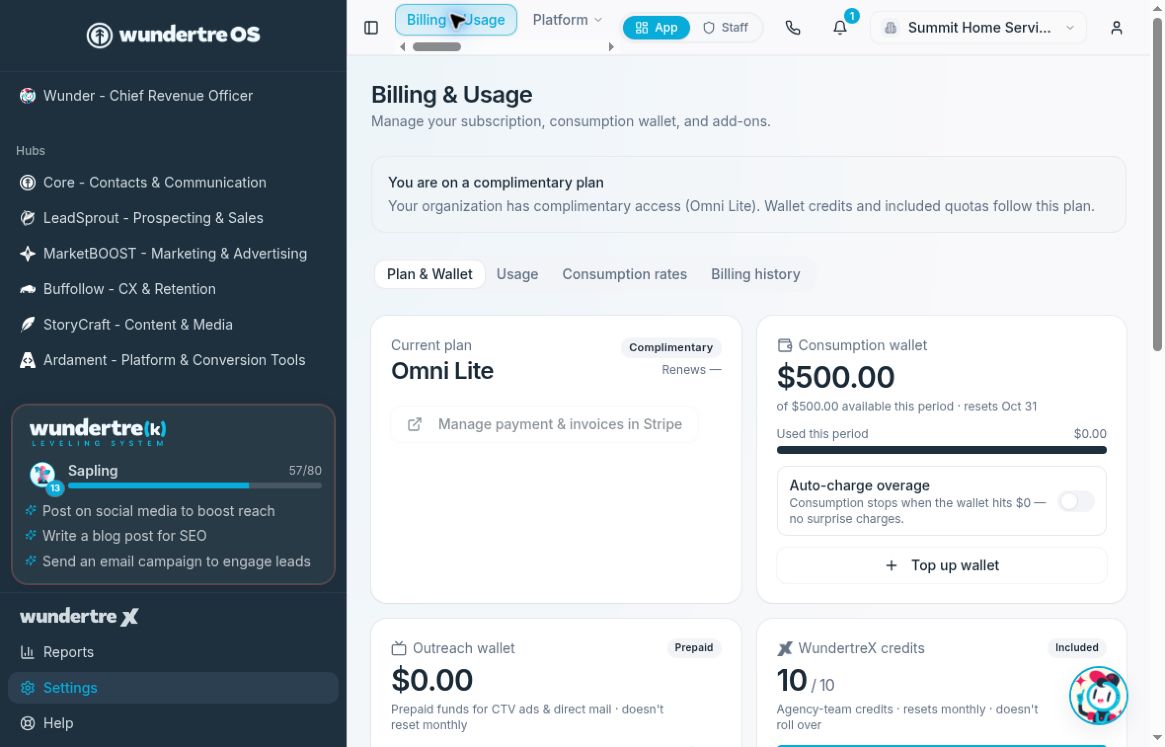
The settled Plan & Wallet view shows complimentary Omni Lite access for this example organization.
Review the current plan
- Open Settings → Billing.
- On Plan & Wallet, wait for the account information to finish loading.
- Read Current plan, its status, and the Renews or Cancels date.
- If a complimentary-access notice appears, read that notice alongside the plan information. A complimentary organization may not have a Stripe subscription to manage.
Open the billing account
Select Manage payment & invoices in Stripe. You can also open Billing history and select Open Stripe billing portal under Invoices & payment methods.
Review invoices, receipts and payment methods in the billing portal. Read the price, timing, taxes and any cancellation terms shown there before confirming a change. If the portal button is disabled, check your billing permissions and whether the organization has a subscription.
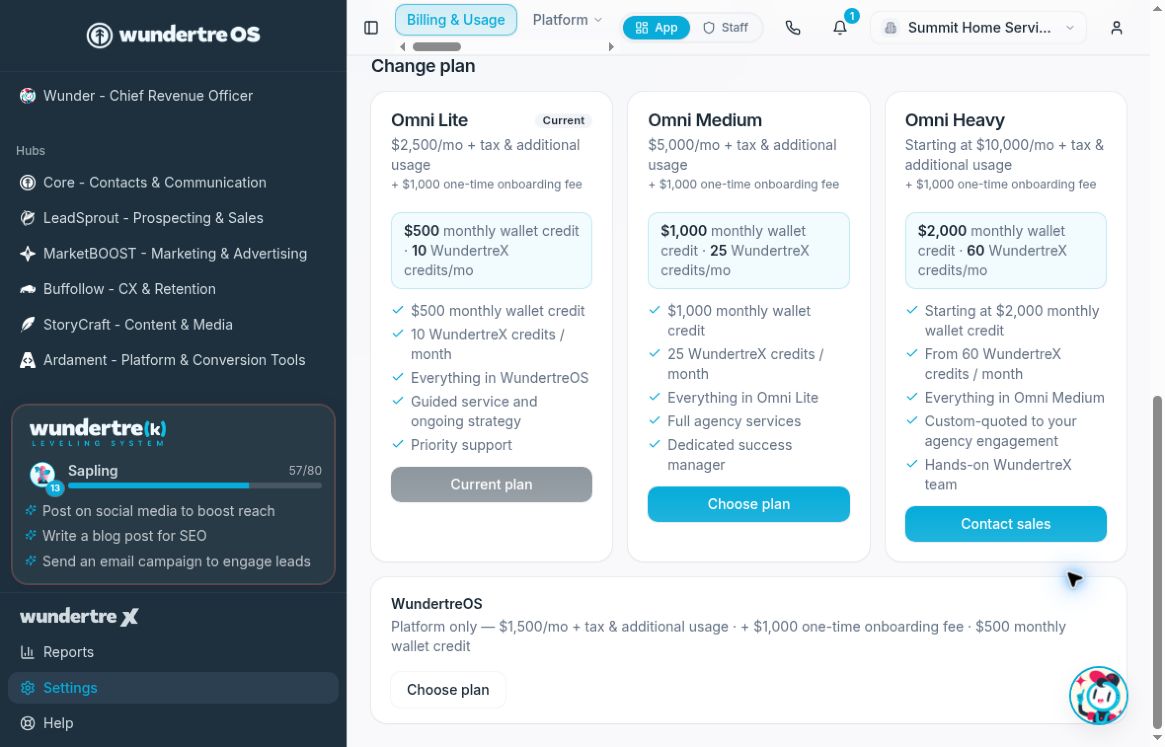
Review the current options and terms before selecting a plan.
Change the plan
- Review the options under Change plan. Compare the monthly charge, included wallet credit, usage allowances and any onboarding fee shown.
- Check which card is marked Current. If an organization-specific offer appears, review its terms separately.
- Select the chosen plan only when you are ready to authorize the change. For an existing subscriber, this may amend the subscription immediately. The app's update message says any proration is applied to the next invoice.
- If you are directed to checkout, review the final total and payment terms before paying.
- Return to Plan & Wallet and check the settled plan and status. Review the corresponding billing record before treating the change as complete.
A Contact sales option starts a sales inquiry rather than a self-service plan purchase.
If the result is unclear
Allow the billing information to refresh after returning from checkout. If it still does not match your purchase, check your receipt and billing account before trying again. A temporarily empty plan or wallet card during loading does not establish that the account has no plan.
For rates and usage, see Read consumption rates, usage and the wallet ledger. For wallet funding, see Top up wallets and choose consumption overage behavior.