
Before you begin
Confirm the organization and the integration that will use the key. Obtain the appropriate approval for persistent access and decide where the credential will be stored securely.
The creation form uses the application's default full-access scope set and does not provide a scope picker. Do not create a key expecting to restrict it to one selected feature from this screen. Use the authorization flow for the specific app when that is the intended connection method; Zapier uses OAuth.
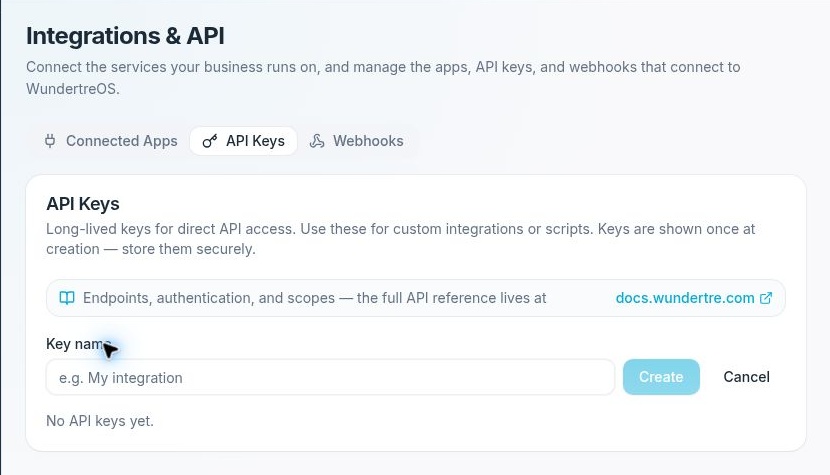
New API Key opens an inline Key name field with Create and Cancel. There is no scope picker.
Create a key
- Open Settings → Integrations → API Keys.
- Select New API Key.
- Enter a descriptive Key name so you can identify the integration later.
- Review the organization and intended use before selecting Create. Pressing Enter in the name field can also create the key.
- In API Key Created, copy the key directly to your approved secure storage. It is shown only once.
- Select Done after storing it safely.
Never put the key in a help article, public repository, screenshot, recording or ordinary chat message.
Check the key list
The list shows Name, Key prefix, Last used and Created. Use the name and creation date to identify the key. A prefix is an identifier, not the complete credential.
Never under Last used means no last-used date is displayed. It does not verify that an integration has been configured successfully.
For authentication requirements, endpoints and scope details, follow the API-reference link on the page. The developer reference is linked at docs.wundertre.com.
Revoke a key
- Identify the exact key and the integrations that depend on it.
- Coordinate any replacement before revoking a key still in use.
- Select Revoke on its row when you are ready to stop that access. The action does not present a separate confirmation dialog in this screen.
- Wait for the result and check that the key no longer appears in the active list.
Revocation can interrupt scripts or integrations using that key. If a credential was exposed, revoke the affected key and use a securely handled replacement rather than continuing to use it.
If you lose a newly created key
The full key cannot be recovered from the list. Review and revoke the unused key when appropriate, then create a replacement through an approved credential-handling process.