
Before you begin
Sign in to WundertreOS and confirm the organization where you want to work. Confirm that visitor identification is approved for the intended site and that the privacy notices and consent configuration match that use. Handle visitor identity data only through your approved privacy and access controls.
1 Open the feature
Open the intended pixel and select Wunder Uncover. Review Wunder Uncover (Visitor ID Resolution) and its current state. The example is disabled, so advanced configuration controls are hidden. The remaining activation and geographic steps apply only when you are authorized to make those changes. The activation switch can create or attach the provider configuration and save it immediately.
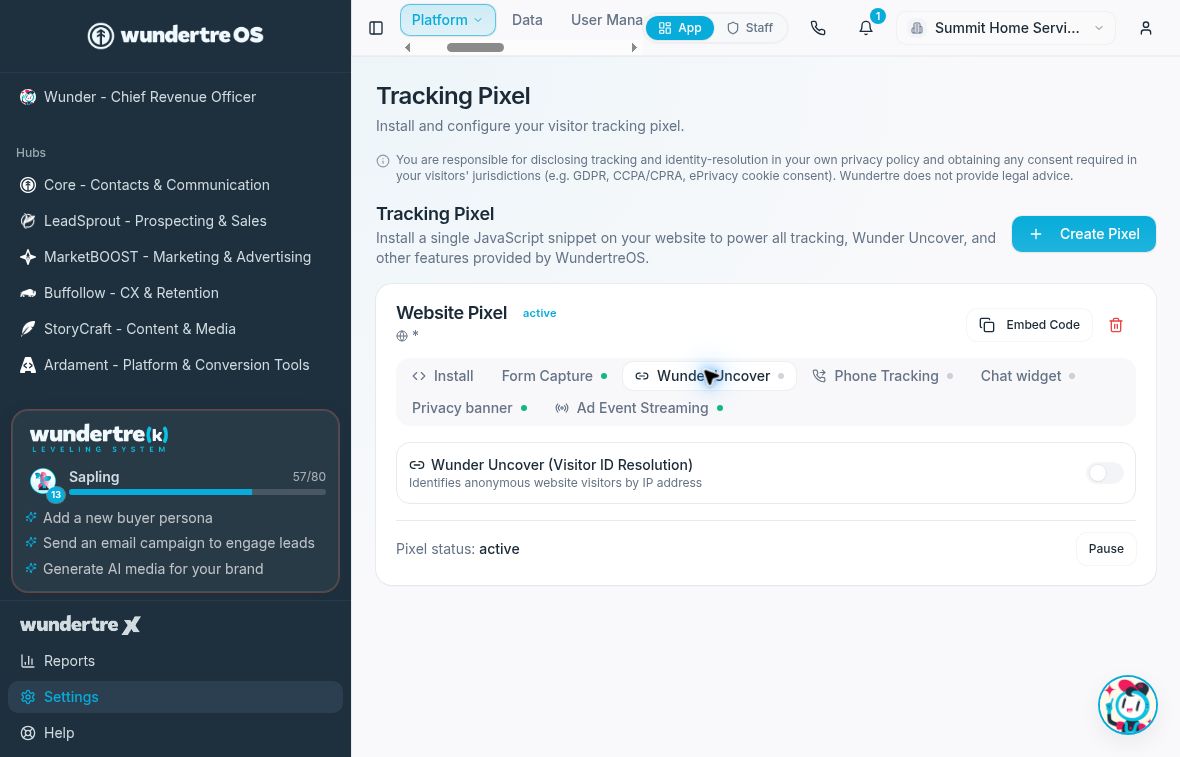
Wunder Uncover is disabled in this example. Advanced controls appear only when available after activation.
2 Check the installation and consent
Use the current pixel loader installation and review Privacy banner before enabling identification. Product documentation describes identity resolution as dependent on affirmative identity consent. Do not add a standalone identification script or weaken consent settings to obtain matches.
3 Review activation
Enable the feature only after the site and data use are approved. If activation reports a configuration error, ask the account administrator to investigate through the approved setup process. Do not paste API keys into a chat or an unapproved document.
4 Review geographic filters
When the geographic controls are available, review Filter by and select the intended scope, such as city, county, DMA, state, or United States. Use only the authorized target geography. These controls describe the configuration; verify the actual filtering behavior with approved test evidence.
5 Check the result carefully
After an approved test, review the feature’s actual activity without exposing personal identities in public material. No match for a visitor is not, by itself, evidence of a broken installation. Keep activation, visitor consent, and an observed identification result separate.
What to check
Confirm that the intended configuration is saved and that consent limits are respected. Do not promise that every visitor will be identified or describe activation as a verified match.