
Before you begin
Sign in to WundertreOS and confirm the organization where you want to work. Have an authorized domain and sender address ready, along with access to the domain’s DNS administrator. A provisioned email account is separate from a verified sending domain. Confirm the email account is ready before domain setup. This guide does not cover purchasing a dedicated sending IP.
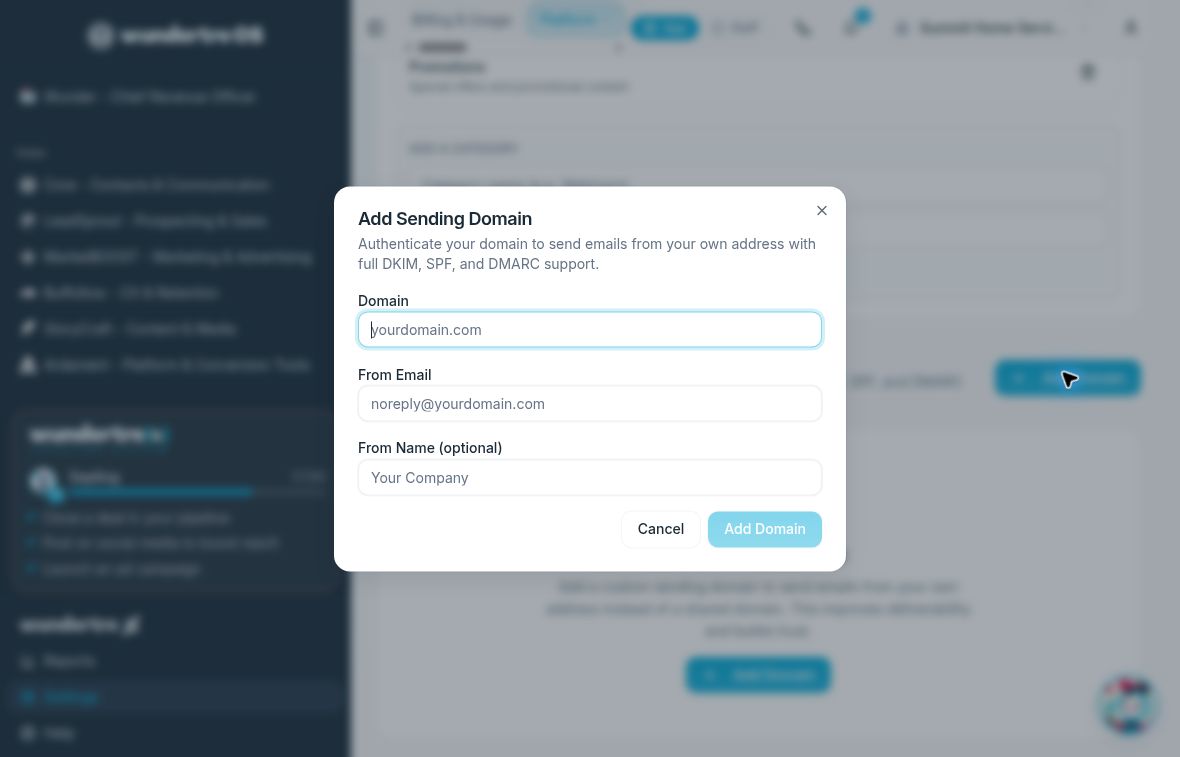
Add Sending Domain collects Domain, From Email, and optional From Name. The form shown is blank.
1 Add the sender details
Open Settings → Email Sending. Under Sending Domains, select Add Domain. Review Domain, From Email, and optional From Name. Use an address and display name that the organization is authorized to send from. Select Add Domain only after checking those details.
2 Read the DNS requirements
Open DNS on the domain’s card. Copy each record exactly as displayed for that sending domain. Have your DNS administrator apply the requested records without overwriting unrelated mail configuration. Do not substitute records from another domain or a tutorial example. Use the actual DNS host for the domain, which may differ from the registrar where you bought it. The DNS instructions show Type, Name, and Value for each record.
Illustrative name example: if a generated hostname were selector._domainkey.example.com, a provider that appends example.com could expect selector._domainkey in Name. This is an example of name formatting only. Use your own generated hostname and target, not these example values.
3 Verify the domain
Return to the domain card and select Verify when available for the pending domain. The DNS dialog also offers Verify Now. Read the resulting domain status and the SPF, DKIM, and DMARC authentication details; follow the domain-specific recommendations shown there. Do not treat an individual passing check as proof that every authentication requirement is satisfied. If verification remains pending, compare the saved DNS records with the current instructions and allow for DNS propagation before checking again. The instructions allow a few minutes to 48 hours. If the provider is still preparing DNS records, wait and check again rather than inventing records.
4 Choose the default if appropriate
For a verified domain that is not already the default, Set Default is available. Review the intended effect before changing the default sender. A default designation does not remove the need to choose an eligible sender in a campaign.
5 Check the sending context
When preparing a campaign, check that its selected sender uses the intended verified domain. Perform a separate, approved test send before relying on delivery. Keep the domain’s verification result separate from the outcome of an email send.
What to check
The correct domain and sender details should be shown with a verified status before use. Verification does not guarantee inbox placement or that every campaign has selected the sender.
Related guides
A0386 Add DNS records and check domain readiness