
Before you begin
Sign in to WundertreOS and confirm the organization where you want to work. Have an approved chat agent in the same organization and know which sites use the pixel. Attaching the agent can affect every page carrying that pixel.
1 Review the selected pixel
Open Settings → Tracking Pixel and confirm the pixel name and domain. Select Chat widget. Review the current selection before changing it.
2 Check the chat agent
Use Manage chat agents if you need to review the agent. Confirm that its content, availability, and intended website use are approved. The selector can show paused agents with (paused) beside the name.
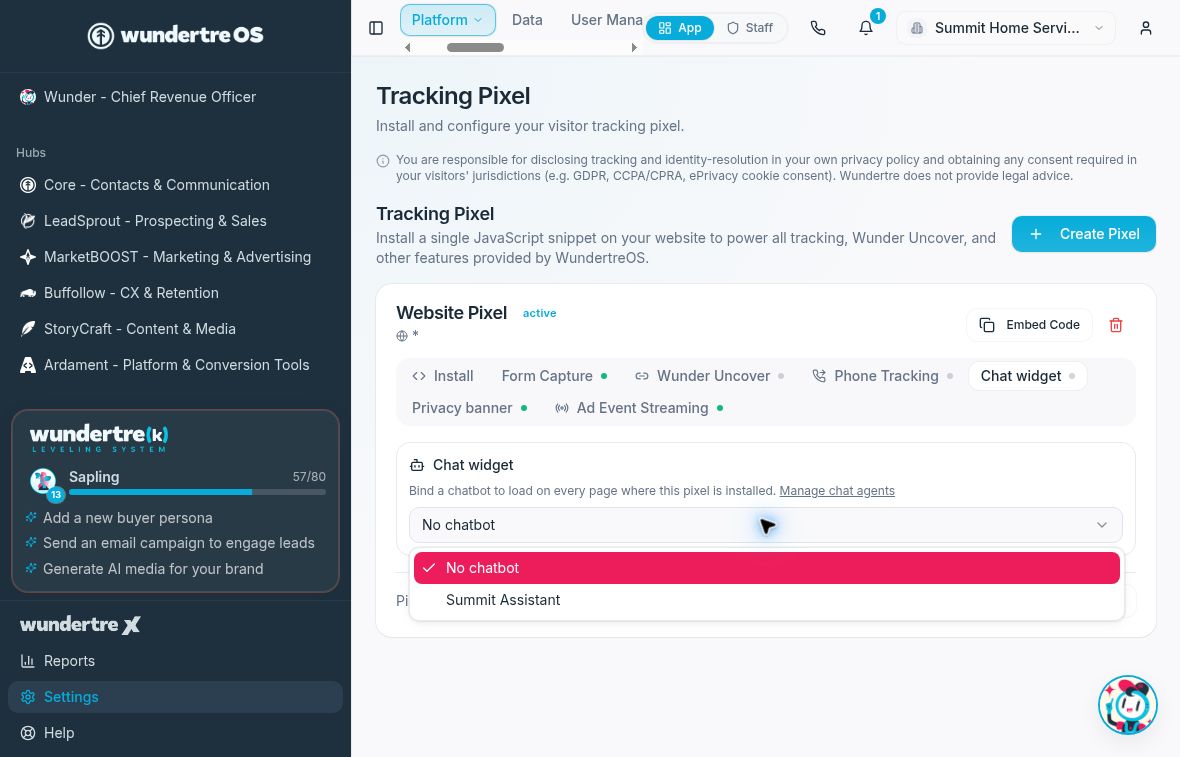
The dropdown shows No chatbot and an available agent. Opening the menu does not attach an agent.
3 Attach the intended agent
Choose the approved agent from the dropdown. Selection saves the binding directly; there is no separate Save step in this panel. No chatbot removes the binding, so do not select it casually on a live installation.
4 Check the website
On an approved test site carrying the pixel, confirm that the intended widget appears and behaves as expected. Check more than one relevant page if the pixel is shared. Use non-sensitive sample text only if a conversation test is authorized.
What to check
Confirm the chosen agent remains selected after re-opening the panel, then verify the website independently. A saved binding does not establish that the widget loaded or that a chat response is correct.