
Before you begin
Sign in to WundertreOS and confirm the organization where you want to work. Have the domain administrator available. Confirm the hostname and what currently uses it before changing DNS. Your account’s displayed record values are the values to use.
1 Find the correct record instructions
Open Settings → Domains and locate the intended landing-page or Experience domain. For a website, open its Domain setup from Ardament → Websites. Read the record’s Type, Name, and Value for that exact destination.
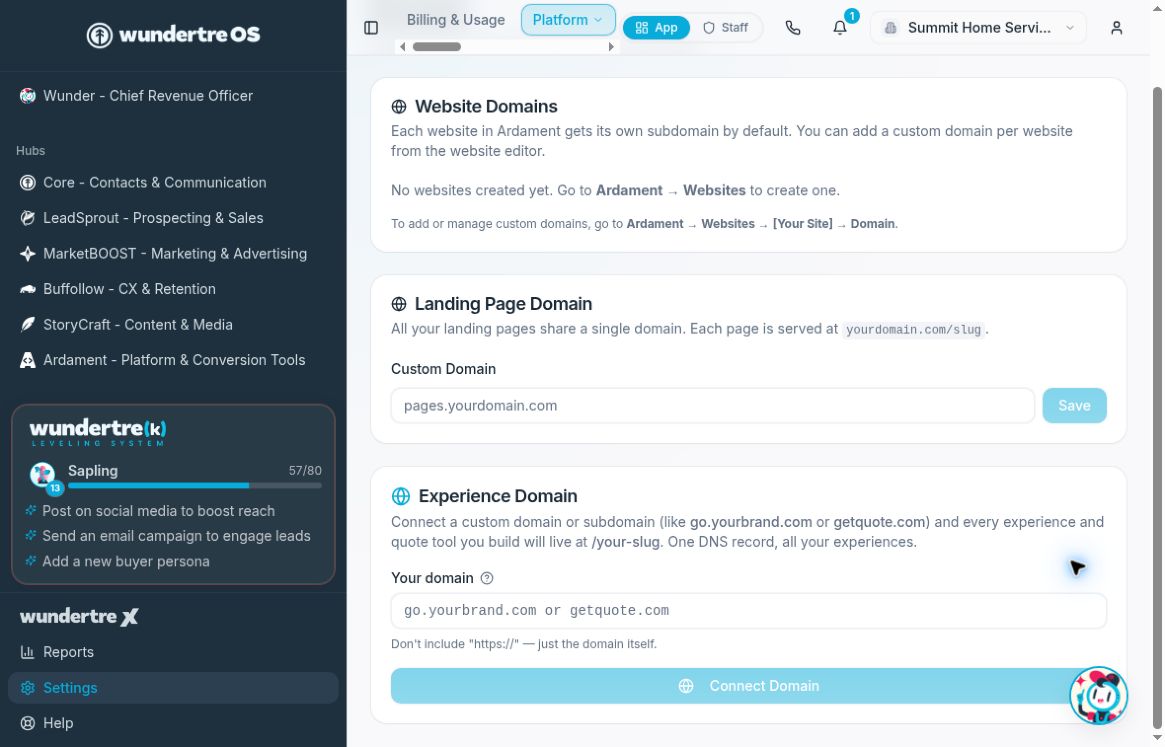
Start with the matching domain setup. The fields shown are unconfigured; DNS instructions follow the selected setup.
2 Check the hostname and target
For a subdomain, the record name identifies the subdomain at your DNS provider. Copy the application’s target carefully. If the screen shows a placeholder rather than a real project target, resolve that setup issue before creating a DNS record. A root domain may require provider-specific flattening, ALIAS, or ANAME support; have the domain administrator confirm the supported approach.
Illustrative DNS example
For pages.example.com, a DNS provider that appends example.com may expect pages in Name and CNAME in Type. Value must be the actual target supplied by your domain setup. This example only explains the fields; it is not a configured record or a target to copy. If your provider expects a full hostname, follow its field instructions rather than adding the root domain twice.
3 Apply the authorized DNS record
At the domain’s actual DNS provider, add or update only the approved record. Preserve unrelated email and website records. If the requested hostname already points somewhere else, review the effect before replacing it. Save the change using the provider’s workflow.
4 Check readiness
Return to the matching domain panel. Landing-page and Experience cards provide Check if it’s working. This is an operational connection check: the landing-page action can attempt to register the configured domain with the hosting provider. Run it only for a domain you intend to connect. Read the resulting state; a Waiting for setup state means the connection has not yet been established there. The application advises that DNS changes may take a few minutes to 48 hours to become visible. Follow your provider’s guidance and retry the appropriate check later. If the check reports an error, read the message and confirm both the DNS values and hosting connection before changing more records.
5 Open the intended page
After the application reports readiness, open the actual published page or Experience address. Check the hostname, page content, and secure connection. If the wrong page appears, investigate the resource mapping before changing additional records.
What to check
Confirm both application readiness and the intended public destination. A saved record, a successful check, and a working public page are separate observations.
Related guides
A0385 Connect the right domain for websites, landing pages and Experiences