
1 Open and review the details
Open Core → Contacts, find the person, and select their row. When opened from the list, the record’s navigation controls move through contacts in that list’s order. Opening a record may generate or refresh missing or stale AI analysis.
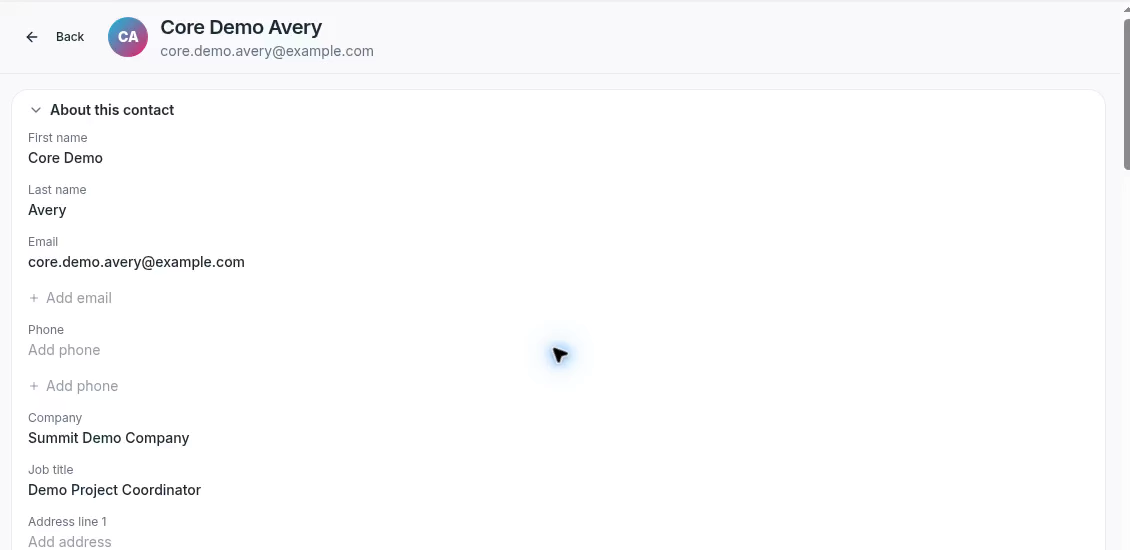
About this contact shows the saved company and updated job title.
About this contact contains identity and contact information, including name, email, company, job title, and address. Expand or collapse sections as needed.
2 Check lead details
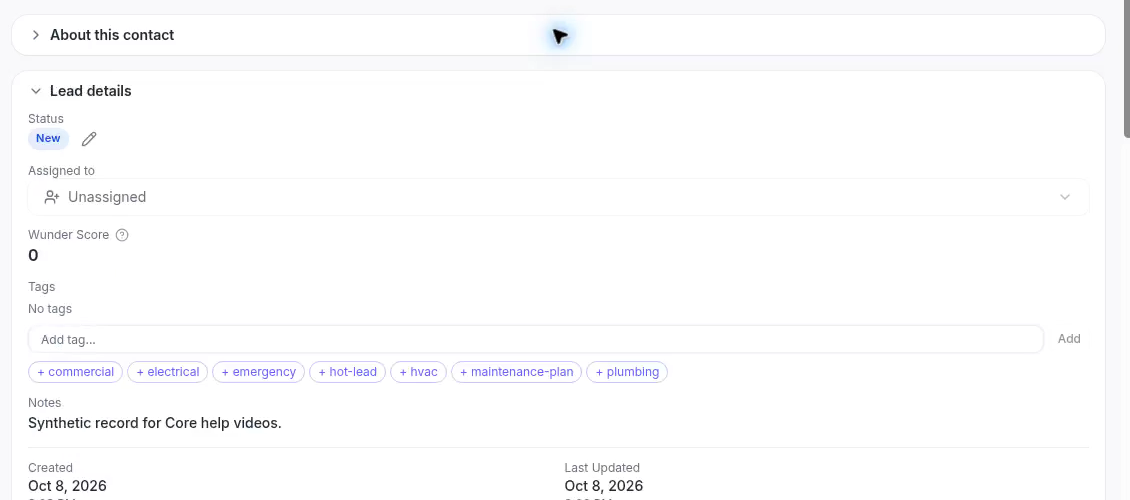
Lead details groups status, assignment, score, tags, and notes.
To edit a text field, select its value. For a single-line field, Enter or clicking away saves; Escape cancels. In multiline Notes, Enter starts a new line and clicking away saves. Status or tag changes can start configured workflows.
3 Explore the record tabs
Lead Analysis shows available generated analysis. Compare its last-analyzed time and summary with the current record before relying on it. A cached summary may predate later changes to the contact.
Select Activities to review the activity timeline and customer web journey. Empty states mean there is no recorded activity in that section.
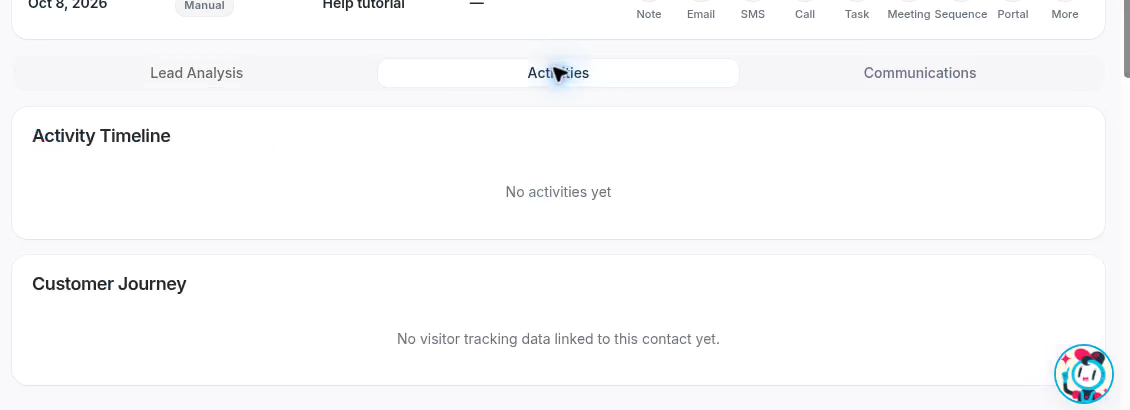
Activities groups the timeline and customer journey.
Select Communications to review available email history, text messages, and call recordings. Scroll further to see related files, household information, deals, and tasks where available.
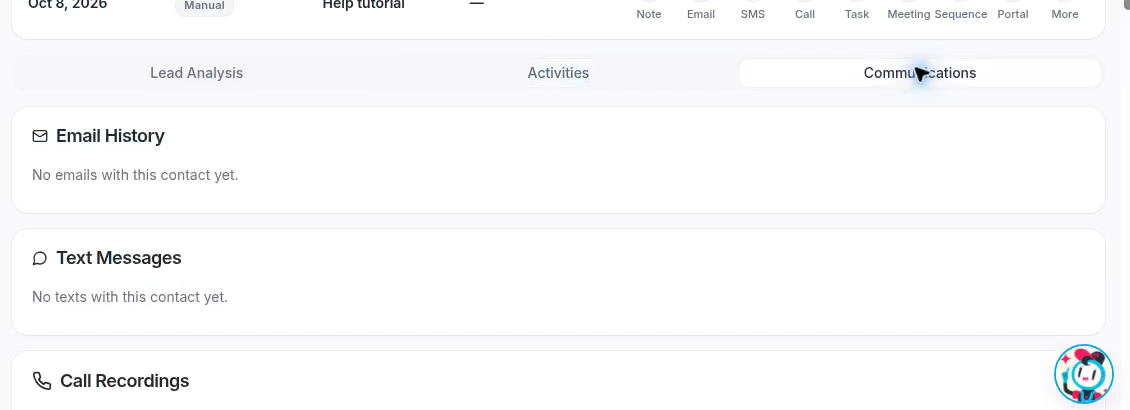
Communications shows separate sections for email, texts, and calls.
Choose the next action deliberately
The action bar includes notes, email, SMS, calls, tasks, meetings, and sequences. Sending communications or enrolling someone in a sequence is a separate action from reviewing their record.
Enrich with Wunder AI requests additional contact data and can update the record. Check your organization’s enrichment policy before using it. More → Delete contact permanently removes the record and its associated history; read the confirmation carefully before proceeding.