
Create the task
-
Open Core → Tasks.
-
Select New Task.
-
Enter a short, specific Title, such as “Review Summit demo project notes.”
-
Add a Description if the next step needs more context.
-
Set Due if the task has a date and time.
-
Choose Low, Medium, or High under Priority.
-
Review Assigned to. New tasks default to Me. Choose a teammate or Unassigned if appropriate.
-
Optionally select a contact, a company, or both.
-
Select Create.
The dialog closes after the task is saved. The task appears in the task list when it matches your current filters.
Assigning a task can notify the assignee. Check Assigned to before creating it.
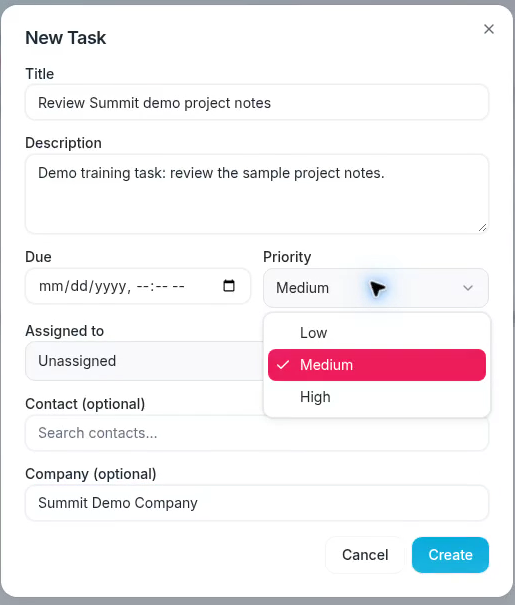
Review the title, priority, assignee, and company before selecting Create.
Link a contact or company
In Contact (optional), type at least two characters from the person's name or email, then select a result.
In Company (optional), type at least two characters from the company name, then select a result.
Typing a name alone does not create an association. Select the matching result. The task can have both a contact and a company link, so check both selections before saving.
Check the saved task
Use Open to find incomplete tasks. Clear the search and set the assignee filter to Anyone if the task is not visible.
Select the task row to review or edit it. Select Cancel in the New Task dialog if you do not want to create the task.
Edit the task later
-
Find the task in Core → Tasks.
-
Select its title or the body of its row to open Edit Task.
-
Change the title, description, due date, priority, assignee, or linked records.
-
Select Save changes.
The checkbox completes or reopens the task. A linked contact or company name opens that record, so select the task title or body when you want the editor.
To change a record link, replace the contact or company search text and select the correct result. Clear a field to remove that association.
Changing the assignee can notify the new assignee. Review Assigned to before saving.

The saved open task shows its updated description and linked company.
Find the task after an edit
A task may leave your current view if its due date or assignee no longer matches your filters. Choose All, set the assignee filter to Anyone, and search the task title.
Select Cancel to leave the editor without saving your changes.