
Before you start
Search Core → Contacts for the person first to avoid duplicates. Creating a contact can automatically generate AI analysis and start configured workflows. Check your organization’s automation settings before saving.
1 Add the contact
Select Add Contact to open New Contact. Enter a First Name, a Last Name, or both. At least one name is required. Add the details you know, such as Email, Company, Job Title, Status, and Source.
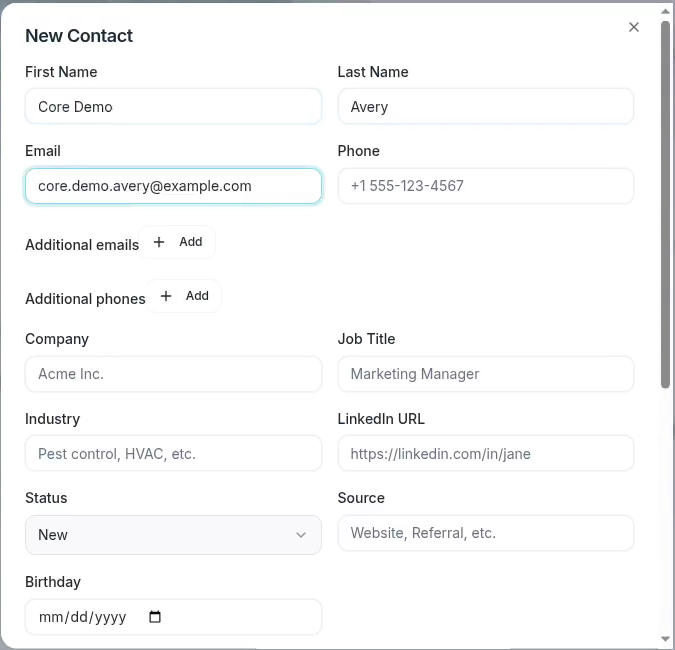
New Contact groups the name, contact information, and business details.
Use Additional emails when the person has more than one email address. To link an existing company record, choose it from the Company suggestions. Typing a company name without choosing a suggestion saves the name without linking the record.
Review the details and select Save Contact. A Contact created message confirms the save. If an error appears, check it before trying again.
2 Find the saved contact
Search for the name or email on the Contacts tab. Check the identifying details before making further changes.
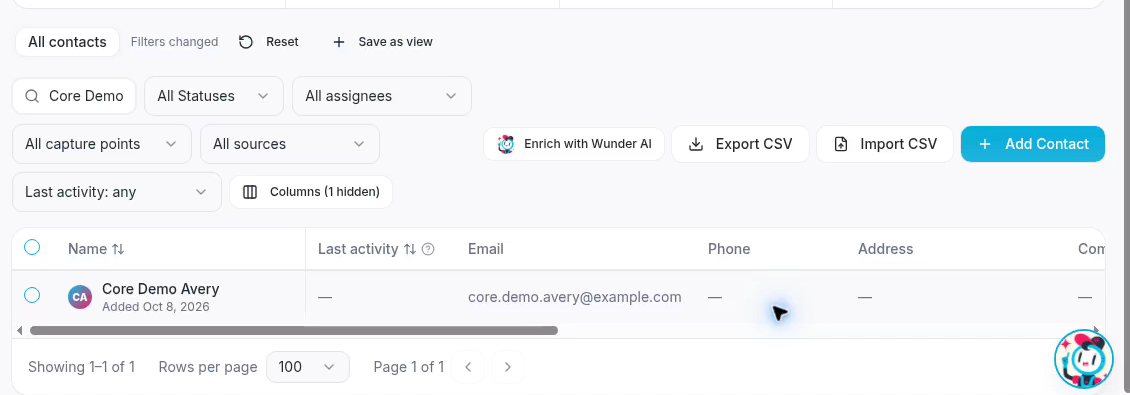
The new Core Demo Avery record appears in the filtered contact list.
3 Update the details
Open the contact’s menu in the Actions column and select Edit. If needed, scroll the table horizontally to find the column. Update the fields in Edit Contact and select Save Contact.
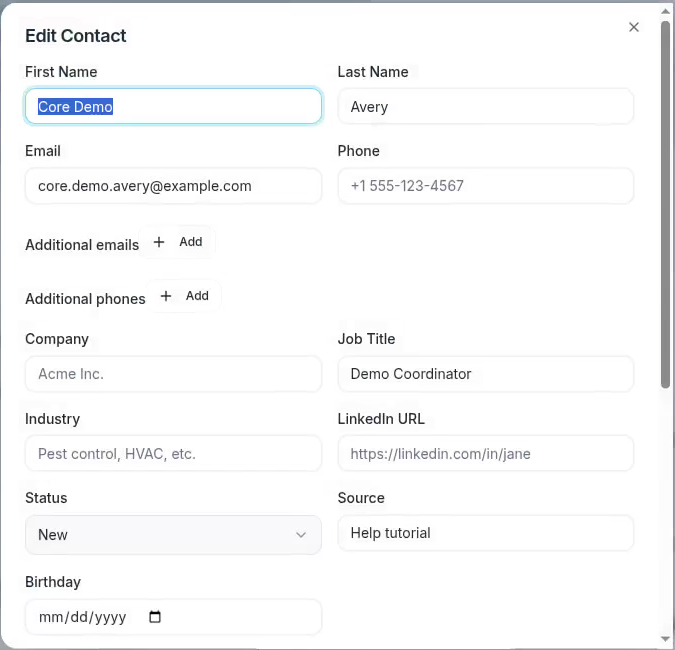
Edit Contact opens with the contact’s saved information.
A Contact updated message confirms the change. Select Cancel to close the form without saving. If you replace the text of a linked company, choose the correct company suggestion again to keep the record linked.
Keep automation in mind
Status changes can start configured workflows. Opening the contact record can also generate or refresh missing or stale AI analysis. Review the intended person and values before saving changes.