
1 Create a list
Open Core → Contacts, select the Lists tab, and choose New List. Enter a List Name and an optional description. Choose a List Type: Static lets you select members by hand; Dynamic fills the list from the filters you set. For a static list, select Save List to create it.
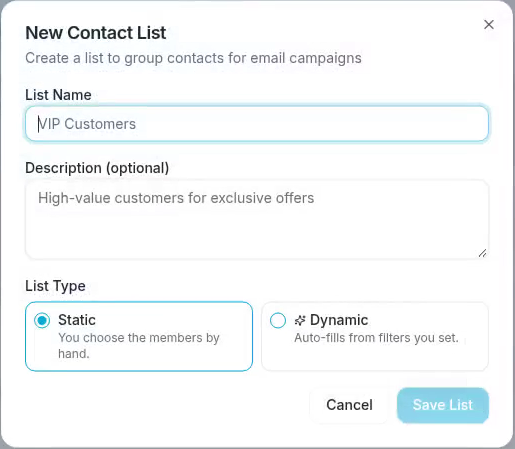
New Contact List lets you name the list and choose its membership type.
2 Set dynamic rules if needed
For a dynamic list, add the conditions that describe the contacts you want. Choose ALL to require every condition or ANY to allow a match to any condition. Review the fields, operators, and values before you select Save List.
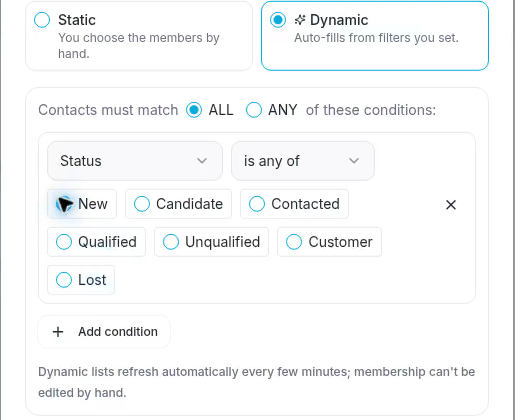
A Status condition can match contacts whose status is New.
3 Add members to a static list
Open the saved list from Lists and select Add Contacts. Search for the people you need, use the status filter if helpful, and select their rows. Review the selection, then choose Add to List. Return to the list and check its members.
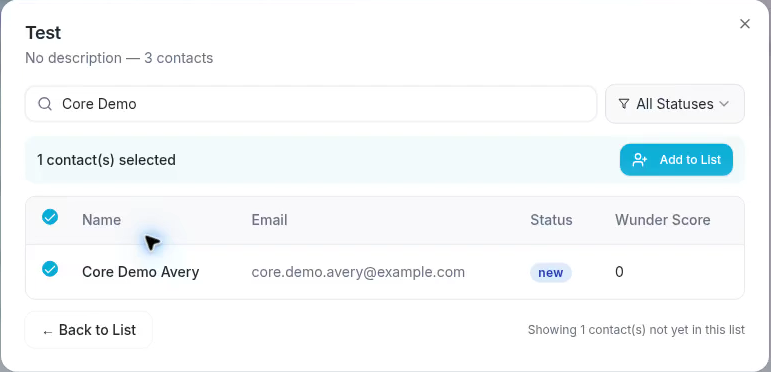
Selected contacts are added only when you choose Add to List.
You can also select contacts on the main Contacts tab and use Add to List in the bulk-action toolbar. Check the selection carefully: adding someone to a list can start an Added to List workflow configured by your organization.
Review dynamic membership
Open a dynamic list to see its members. Its rules control membership, so it does not use the manual Add Contacts workflow. Use Refresh now when you need to recalculate the current matches. If the app warns that members could not be calculated, review the filters and try refreshing.
Edit or remove a list
Use the list card’s menu and select Edit to change its settings. Changing a populated static list to dynamic replaces its hand-picked membership with the filter results. Review the conversion warning before continuing.
Delete removes the list grouping and leaves contacts in place. Campaigns targeting that list lose their audience, and list deletion cannot be undone. Check those dependencies before confirming.