
Before you start
The contact must already exist in Core Contacts. This dialog links an existing contact; it does not create a new one.
A contact has one company association in this linking flow. If the contact is already linked to another company, linking it here moves it to the company you select. Check that this is the change you want before saving.
1 Open the company
Open Core → Companies, search for the company, and select its name. Scroll to Org Tree and select Add Contact.
2 Find the contact
In the Contact search field, type at least two characters from the contact’s name or email. Select the correct person from the results. Check the email when names are similar.
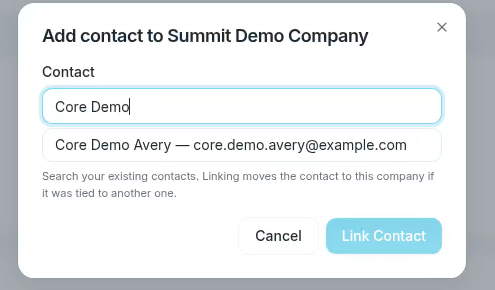
Search by name or email, then select the matching result.
3 Save the association
Check the company named at the top of the dialog and the selected contact. Select Link Contact to save the association.

Link Contact becomes available after you select a person.
After the link is saved, the contact appears in the company’s Org Tree. Select the contact to open that person’s record.

Core Demo Avery appears in the saved Org Tree with the job title and email.
If you cannot find the contact
Try a more specific part of the person’s name or email. Confirm that the person is in Core Contacts. Select a search result rather than leaving only typed text in the field.
If you selected the wrong person
Change the search text and choose the correct result before selecting Link Contact. To leave without making the change, select Cancel.
Expected result
The contact is associated with the intended company and can be found in its Org Tree.