
Prepare your CSV
Include a header row. Each contact needs a First Name and at least an Email or Phone value. Last Name is optional. A Name or Full Name column can be mapped to First Name. If you include status, use a supported contact status.
Remove repeated rows and review existing data before importing. Update matching uses the primary email address; a phone-only row is not an email match. When a file repeats a primary email, the importer keeps the last occurrence for processing.
1 Upload the file
Open Core → Contacts and select Import CSV. Drop your file into Import Contacts from CSV, or click the upload area to browse.
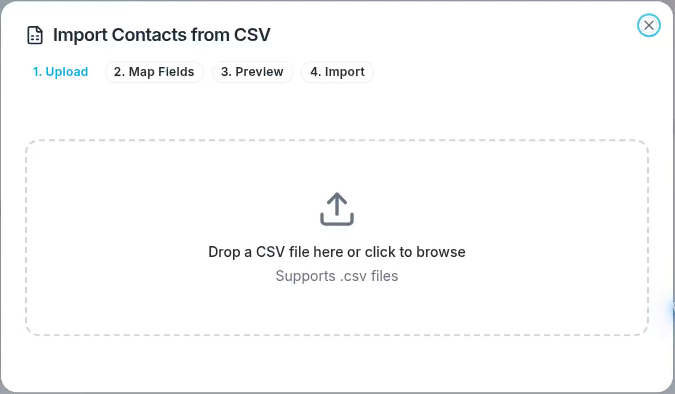
The wizard moves through Upload, Map Fields, Preview, and Import.
2 Map the fields
In Map Fields, review every column’s mapping. Choose — Skip — for columns you do not want to import. Map First Name and either Email or Phone. Choose whether to add contacts to an existing or new list, or leave Don’t add to a list selected.
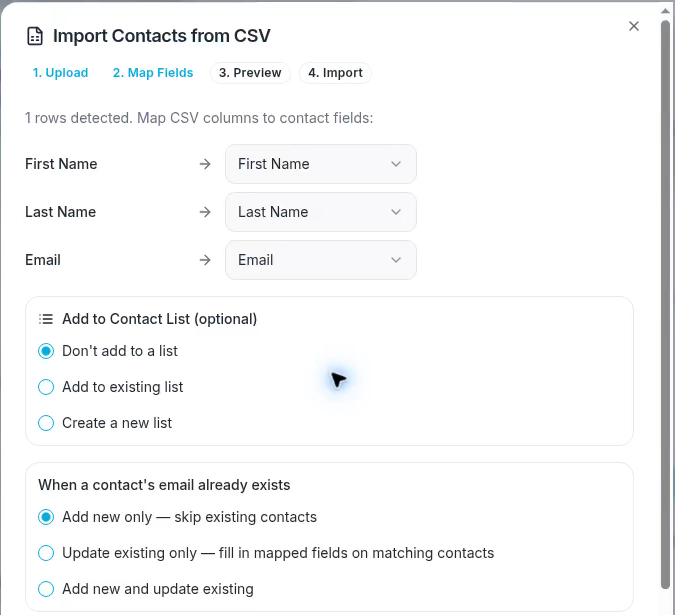
The example maps First Name, Last Name, and Email, with no list selected.
3 Choose the import mode
Add new only — skip existing contacts adds new contacts and skips email matches. Update existing only — fill in mapped fields on matching contacts updates email matches and skips rows without a match. Add new and update existing performs both operations.
Updates write mapped, non-empty values. A populated value can replace an existing value on the contact. Blank imported values do not clear existing standard fields.
4 Preview and import
Select Preview. Review valid rows and warnings, then check the mappings and import mode again. When ready, select Import [number] Contacts. Review Import Complete, including the imported, updated, skipped, duplicate, and error counts that appear.
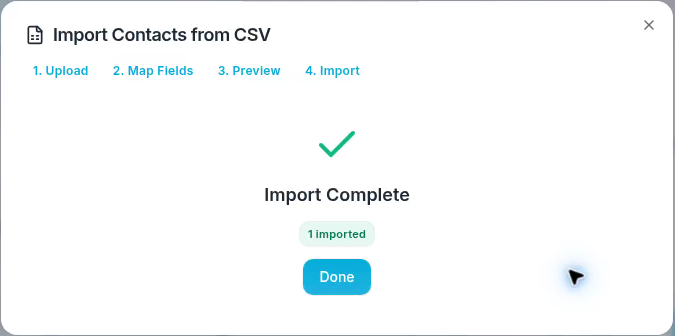
The example finishes with one contact imported.
Find a few imported or updated contacts and compare them with the CSV. A custom-field or list-membership warning can mean contacts saved while that related step failed. Check affected records before importing the whole file again.
Imports can affect integrations. Adding contacts to a list or changing status can start configured workflows. Check those effects with your administrator before a large import.
Export the current results
Set the search and filters for the contacts you need, check the result count, and select Export CSV. Store the downloaded file in an appropriate location for customer data.
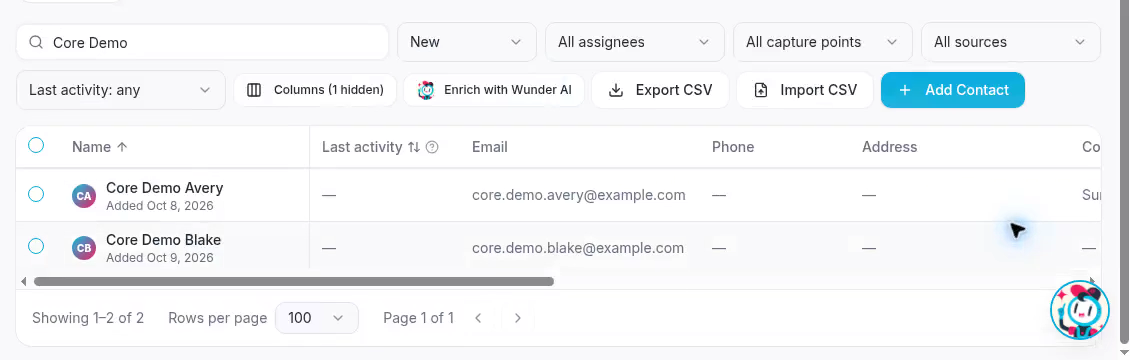
Export CSV follows the contacts that match the current filters.
Export includes matching results on other pages. Row checkboxes do not define the export selection. Export CSV is available only to roles with export access.