
1 Find the company
Open Core → Companies. Enter part of the company name in Search companies.... You can also search by domain, industry, or physical address. This example searches for Hill to find Hill Country Property Mgmt.
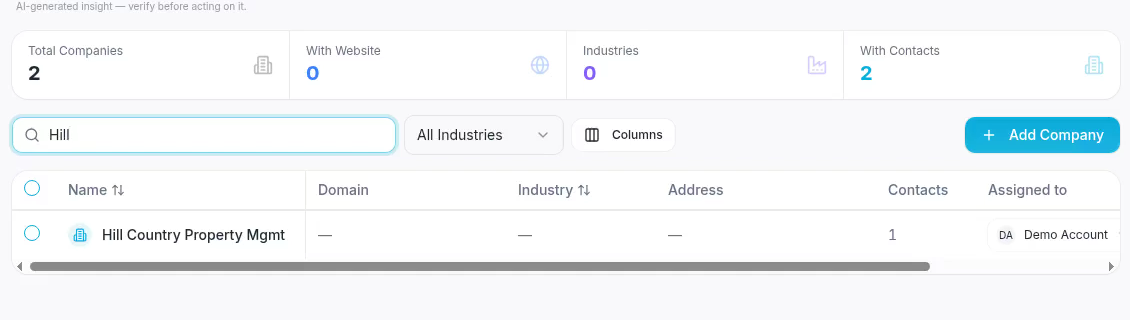
Search narrows the company list as you type.
To narrow the list further, choose an industry from All Industries. Search and industry filters work together. If no industries are available, leave All Industries selected. Select the company name to open its record.
2 Review the basic details
About this company shows the assigned teammate and basic details. Business property data shows the address, property size, and year built when available.
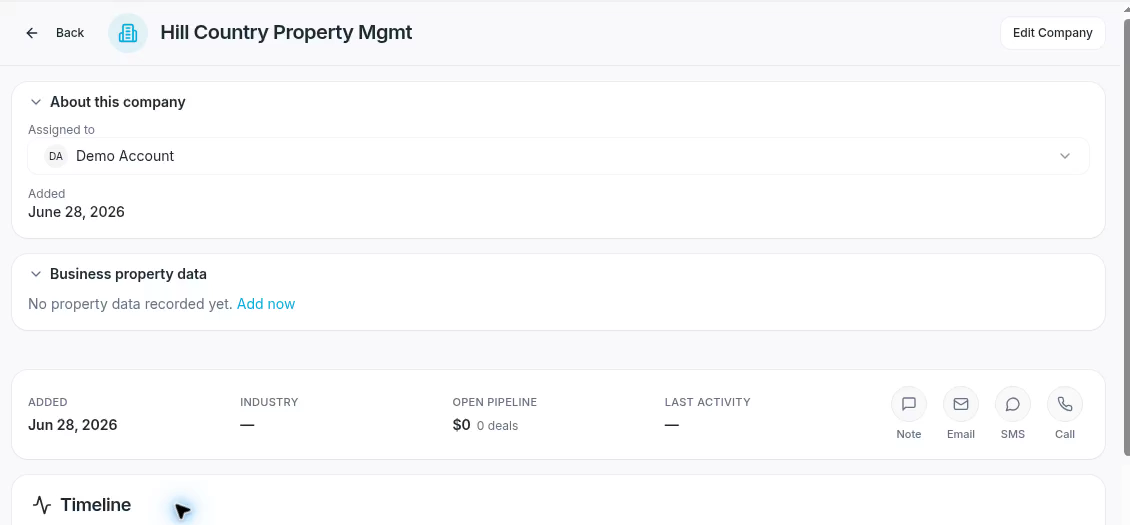
The company record groups basic information and property details.
3 Review activity and linked people
Scroll to Timeline to review activity recorded for the company. Org Tree shows linked contacts. Select a contact to open that person’s record. The example already has Grace Hall linked.
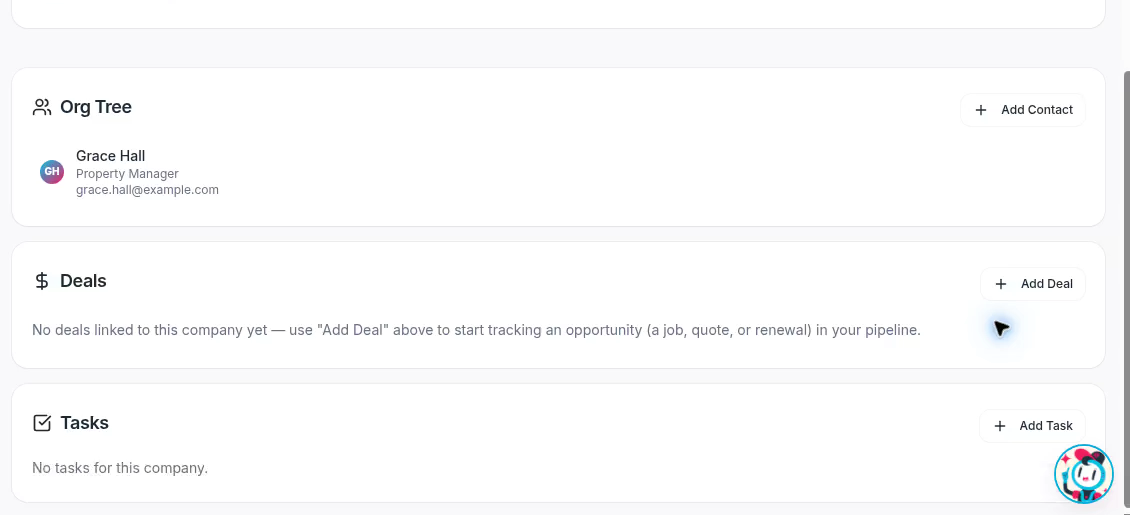
Org Tree shows linked people; Deals and Tasks appear below it.
The company record also includes linked deals and tasks. Select Back to return to Companies.
Sort the company list
Select Name, Industry, or Added in the table header to sort by that field. Select the same heading again to reverse the order. The Contacts column shows the number of contacts linked to each company.
If you cannot find the company
Clear the search and choose All Industries, then try again. Check the company name or domain before creating another record.
Expected result
You have located the company and reviewed the information, activity, and linked people on its record.