
Before you start
Search Core → Companies for the business first. Check its name and domain so you do not create a second record for the same company.
1 Add the company details
Open Core → Companies and select Add Company. Enter Company Name, which is required. Add the Domain, Industry, Physical Address, Property Sq Ft, and Year Built when you know them. Leave optional details blank if you do not know them.
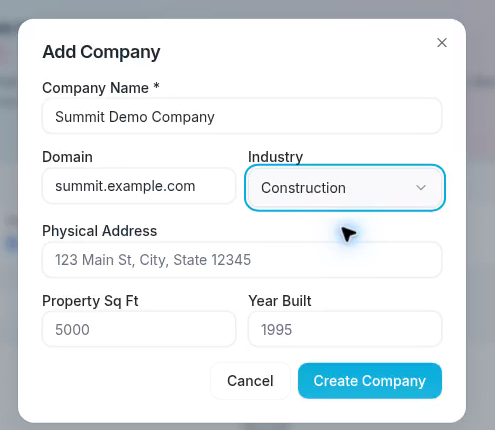
The example uses Summit Demo Company, summit.example.com, and Construction.
Use the business’s usual name so teammates can recognize it. Enter a domain without a page path when possible. Enter numbers for property size and year built. Gray example values in empty fields are placeholders, not saved details.
2 Create and find the record
Select Create Company. After the company is saved, the dialog closes and the company list refreshes. Search for the company name and open its record to review it.
3 Update the company later
Open the company from Core → Companies and select Edit Company at the top of the record. You can also open the company’s three-dot menu in the Companies list and select Edit.
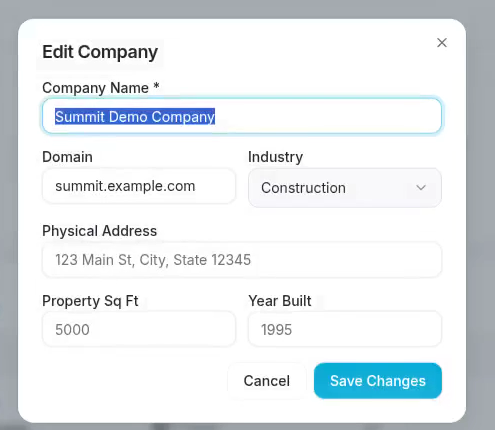
Edit Company lets you update the name, domain, industry, and property fields.
Change the details you need and select Save Changes. This example changes Industry from Construction to HVAC. Review the record to check the updated value.
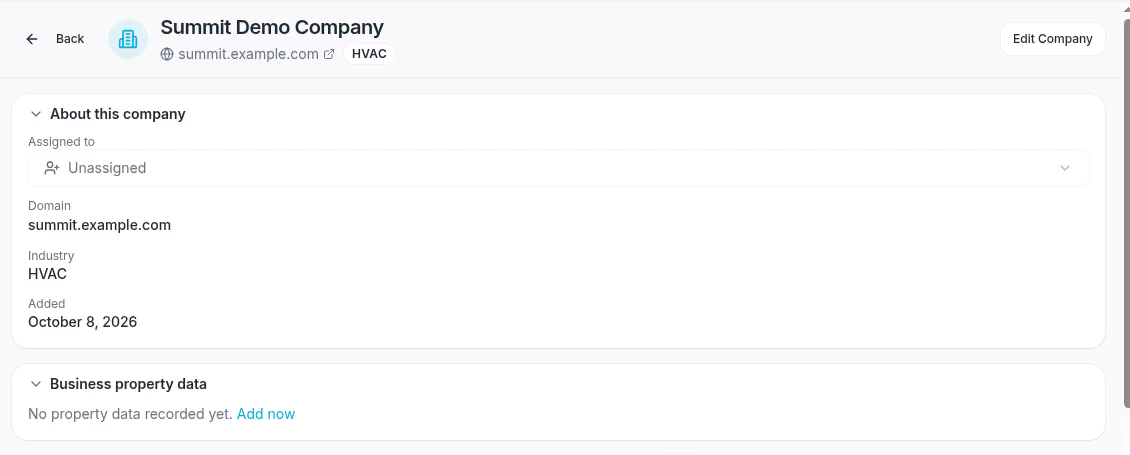
The saved company record now shows HVAC and the same domain.
If a change does not save
Make sure Company Name contains a name. If an error appears, keep the dialog open and review the message before trying again. Select Cancel to leave without saving.
Editing company details is separate from linking a contact. To link an existing contact, use Add Contact in the company’s Org Tree.